

The fastest way to automate Google Sheets is to pick the lowest-complexity method that meets your scale. Macros handle simple, repeated UI actions. Apps Script covers custom logic you’ll reuse. IMPORTRANGE and connectors keep data synced across sheets and apps, and no-code platforms take over when you need to touch tools outside Google entirely. Start small, and only add complexity when the task actually demands it.
TL;DR:
- Macros are ideal for simple, repetitive formatting tasks but can break if column orders change.
- Apps Script offers flexible, reusable automation but requires coding knowledge and careful trigger management.
- IMPORTRANGE provides quick data syncing for small datasets but needs manual permission and has refresh delays.
- No-code connectors are convenient but involve trusting third-party access, making data security a key consideration.
- For affiliate marketers, combining scheduled reports with AI summaries optimizes time spent on analysis and content creation.
Table of Contents
- Methods at a Glance for Google Sheets Automation
- How Do You Choose the Right Automation Method?
- Three Quick Wins You Can Build in Under 30 Minutes
- When Should You Use onEdit, onFormSubmit, or Time-Based Triggers?
- What’s the Best Way to Sync Data Between Sheets?
- How Do You Keep Automated Sheets Secure?
- Why Is My Google Sheets Automation Breaking or Slowing Down?
- How Affiliate Marketers Can Pair Sheets Automation With AI Workflows
- Where to Learn More About Google Sheets Automation
- The Real Trade-Off Nobody Explains Well
- Ready to Turn These Automations Into a Repeatable System?
- Sources
- FAQ
Methods at a Glance for Google Sheets Automation
Every automate Google Sheets project starts with the same question: how complicated does this really need to be? Here’s how the main options stack up.
- Macros: Record a sequence of clicks and formatting steps once, replay it forever. Best for repetitive formatting or cleanup tasks. Low barrier, but macros generate Apps Script code behind the scenes, so they can break if column order shifts.
- Apps Script: JavaScript-based custom functions, menus, and API calls. Higher learning curve, but far more flexible. Good for building a reusable invoice generator or a custom formula your team calls by name.
- IMPORTRANGE: A single formula that pulls a range from another spreadsheet. Zero code, instant setup, but it needs a one-time permission grant and doesn’t refresh in real time.
- No-code connectors: Marketplace add-ons that move data between Sheets and outside apps like CRMs or ad platforms. No scripting required, though you’re trusting a third party with access to your files.
- AI agents: Newer tools that interpret plain-language instructions and generate the formulas or scripts for you, useful when you know the outcome but not the syntax.
How Do You Choose the Right Automation Method?
Stop deliberating and run through this checklist instead:
- How often does this task repeat? Daily or weekly tasks justify Apps Script; monthly ones might not.
- How many rows or sheets are involved? IMPORTRANGE strains past a few thousand rows; a connector or the Sheets API handles scale better.
- Does it touch other apps? If yes, skip pure Sheets formulas and look at a connector.
- How sensitive is the data? Financial or client data means tighter OAuth scopes and fewer third-party add-ons.
- Are you willing to maintain code? If not, a macro or connector beats a script you’ll forget how to debug.
Cost and security deserve equal weight. Marketplace add-ons typically request broad OAuth scopes, and reviewing exactly what permissions you’re granting matters more than the add-on’s star rating.
Pro Tip: Prototype on a duplicate sheet first. If the automation still makes sense after two weeks of real use, then invest the extra hour to make it robust with error handling.
Three Quick Wins You Can Build in Under 30 Minutes
You don’t need to learn JavaScript to get real time back this week. Try these three, in order of increasing effort.
- Record a formatting macro. Go to Extensions > Macros > Record Macro, apply your standard header formatting (bold, freeze row, background color), then save it. Use relative references if you want the macro to apply wherever your cursor sits, and absolute references only when it should always target the exact same cells.
- Email yourself a daily report. Open Extensions > Apps Script, write a short function that grabs a range with
getRange().getValues()and sends it viaMailApp.sendEmail(). Then install a time-based trigger under Triggers so it fires every morning without you touching the sheet. - Build a dashboard with IMPORTRANGE. In your central sheet, type
=IMPORTRANGE("sheet-url", "Sheet1!A1:D100"), grant access when prompted, and you’ve got a live pull from another file.
Automation hubs that track this kind of work consistently point to the same pattern: teams that automate imports and report refreshes cut down on stale data and manual reconciliation. The time saved compounds fast once the report stops requiring a human to copy and paste it every morning.
When Should You Use onEdit, onFormSubmit, or Time-Based Triggers?
Triggers decide when your Google Sheets scripts actually run, and picking the wrong one causes most of the “why did this fire twice” headaches.
- Simple triggers (like a basic
onEdit(e)function) run automatically but can’t access services requiring authorization, like sending email. - Installable triggers handle onFormSubmit, time-driven schedules, and anything needing broader permissions. Set these from the Triggers clock icon in the Apps Script editor, choosing the event type and frequency.
- Keep onEdit handlers lightweight. Checking a cell value and writing a log entry is fine; looping through 500 rows every time someone edits one cell will slow the whole sheet down.
- When heavier processing is unavoidable, queue it into a time-based trigger that runs every few minutes instead of firing on every keystroke.
What’s the Best Way to Sync Data Between Sheets?
IMPORTRANGE handles lightweight syncing well, but it has real limits worth knowing before you build a dashboard around it.
- IMPORTRANGE requires a one-time access grant per source sheet, and it caches results rather than refreshing instantly, so don’t rely on it for anything time-critical.
- For real-time updates or workflows that cross into other apps, a connector or the Sheets API is the better tool. You can see this in action with something like exporting LinkedIn data straight into Sheets, which uses API-based syncing rather than a formula.
- When a source sheet’s columns change, IMPORTRANGE breaks silently. Name your ranges instead of hardcoding cell references, so formulas keep working after a schema shift.
- Preserve any formulas or named ranges in the destination sheet by pulling raw data into a separate tab, then referencing it, rather than overwriting formatted cells directly.
How Do You Keep Automated Sheets Secure?
Every automation you add is another door into your data, so treat permissions the way you’d treat a house key. Favor OAuth-scoped connectors over add-ons that ask for account-wide access, and revoke tokens for tools you’ve stopped using rather than leaving them dormant. If several people run the same automation, route it through one dedicated account instead of everyone’s personal login, so access is easy to audit and revoke.
Pro Tip: Keep a simple change log tab in your sheet noting what script changed and when. It takes thirty seconds and saves you an hour of guessing when something breaks two months later.
Always test a new script on a duplicate of your production sheet first. A bug that overwrites live data is far more expensive than the ten minutes it takes to copy the file before you experiment.
Why Is My Google Sheets Automation Breaking or Slowing Down?
Most automation failures trace back to one of three things: a permission that expired, a dataset that outgrew the script, or a trigger doing too much work at once.
- Check the Apps Script execution log first. It shows exactly which line failed and why, faster than guessing.
- Re-run a small test with five rows before assuming the whole dataset is the problem.
- Batch your writes. Calling
Range.setValues()once on a full array is dramatically faster than writing cell by cell in a loop, and minimizing spreadsheet reads keeps quota usage down. - If your sheet is pulling from multiple APIs, hitting rate limits, or serving more than a handful of users, that’s usually the sign to move logic to a backend service or a managed connector instead of stretching Apps Script further.
How Affiliate Marketers Can Pair Sheets Automation With AI Workflows
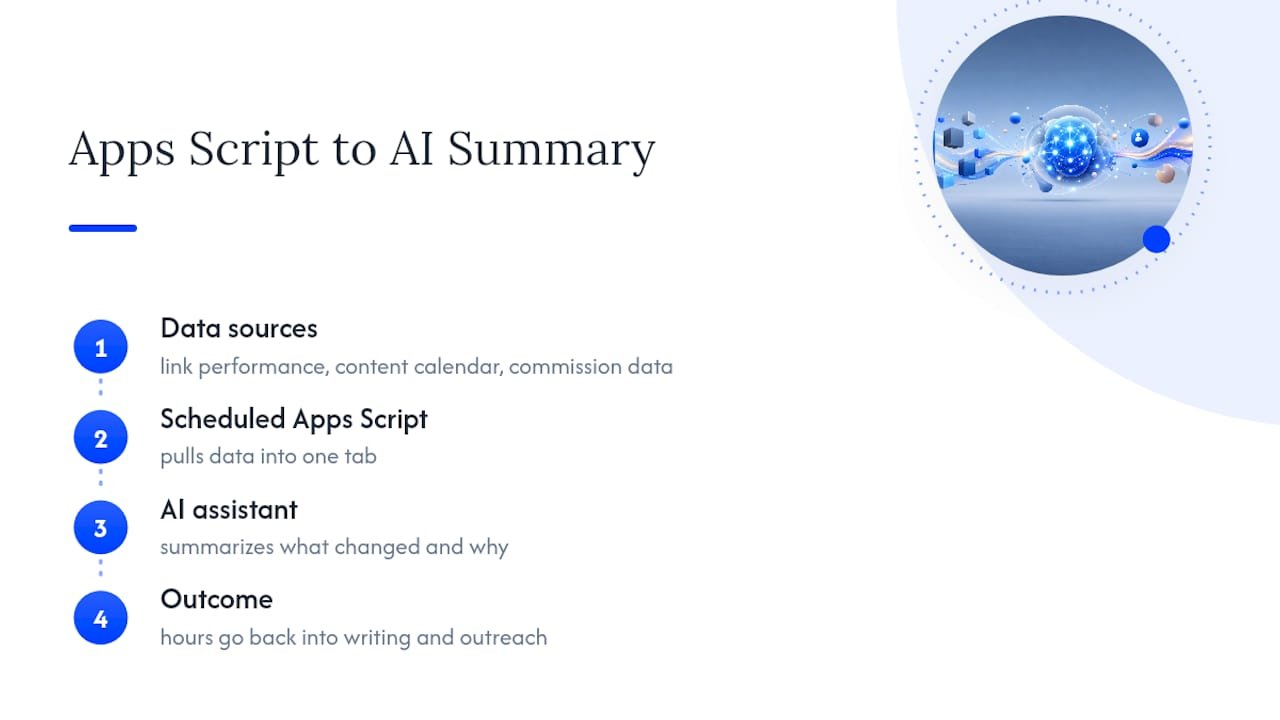
The automations that free up the most time for affiliate marketers aren’t the flashy ones. They’re the boring reports: link performance pulled into one tab, content calendars that populate themselves, commission data synced weekly instead of copied by hand. Once that plumbing runs itself, the hours go back into writing and outreach.
Pairing a scheduled Apps Script report with an AI assistant that summarizes performance trends is where this gets genuinely useful. The sheet handles the data pull; the AI handles the “what changed and why” summary you’d otherwise write yourself. If you want a more guided version of this pairing, Will Buckley’s AI workflow automation guide walks through the setup, and the ready-to-run affiliate recipes give you templates instead of a blank script editor.
Where to Learn More About Google Sheets Automation
Google’s own Apps Script fundamentals codelab is the clearest starting point for macros and custom functions. Pair it with the Sheets automation guide for the built-in basics, and Zapier’s practical automation walkthrough for real-world recipes.
The Real Trade-Off Nobody Explains Well
Most advice on Google Sheets automation treats “learn to code” as the finish line, as if every reader should graduate from macros to Apps Script the way you’d level up in a game. That’s backwards. The actual skill worth building is knowing when not to script something.
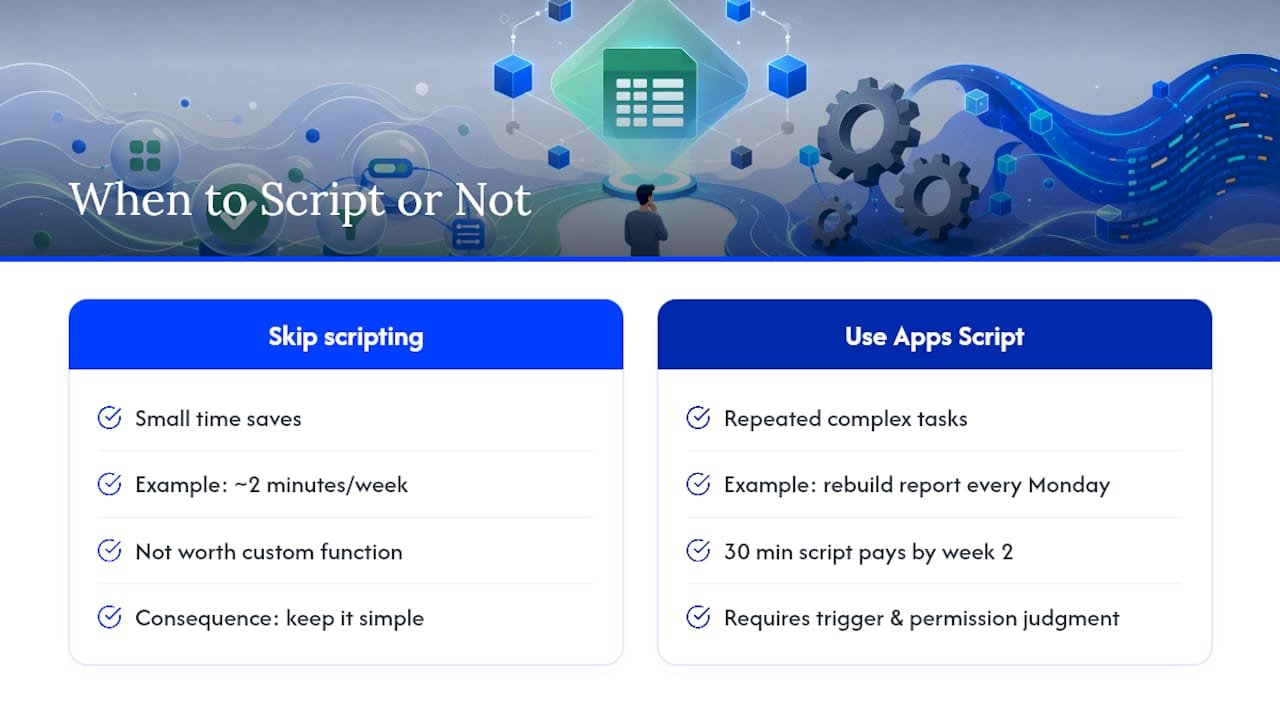
A macro that saves you two minutes a week doesn’t need a custom function wrapped around it. But a report you manually rebuild every Monday, pulling numbers from three tabs and formatting them for a client, is exactly the kind of task where thirty minutes with Apps Script pays for itself by the second week. The conventional advice skips this judgment call entirely and jumps straight to syntax.
Where I’d push back hardest: don’t treat AI-assisted script generation as a shortcut around understanding triggers and permissions. It’s a shortcut around typing syntax. You still need to know whether that trigger should be an installable one, and whether the connector you just approved can see more of your Drive than it should. Automation without that judgment just moves the mess somewhere less visible.
— Will
Ready to Turn These Automations Into a Repeatable System?
This site is a resource for affiliate marketers who want their Sheets automations doing double duty. Instead of rebuilding your reporting workflow from scratch every time a new campaign launches, Will’s guides pair the exact automations covered above with AI-assisted content and campaign tracking, so one scheduled script feeds your reporting and your next round of content ideas.

If you’re running affiliate campaigns and want a system that turns raw performance data into content and outreach without extra manual steps, the YouTube automation affiliate marketing playbook is a useful next step. It walks through setting up the automation and the AI workflow side by side, so you leave with a system instead of a single script.
Sources
- Automate tasks in Google Sheets – Computer – Google Docs Editors Help
- Sheet Automation – Automate Google Sheets™ (Marketplace listing overview)
- Google Sheets Automation Hub – Coefficient
FAQ
How can I pull data from one Google Sheet to another automatically?
Use =IMPORTRANGE("sheet-url", "Sheet1!A1:D100") for simple, infrequent syncs, or a connector/Sheets API setup if you need near real-time updates across multiple files.
Can ChatGPT work with Google Sheets?
Yes. AI assistants can generate the Apps Script or formula syntax for you based on a plain-language description, and some connectors let AI tools read or write directly into a sheet, though you still need to review and test what they produce.
Is there a way to automate Google Sheets to automatically sort data?
Yes. A short Apps Script function using Range.sort() triggered by an onEdit or time-based trigger will re-sort a range automatically whenever new data lands.
How do I automate calculations in Google Sheets?
Standard formulas handle most recurring calculations automatically, and for logic too complex for a formula, Apps Script lets you write a custom function that behaves like a built-in one and updates whenever the sheet recalculates.