
For most creators, Descript is the best starting point among AI video editors — it turns a transcript into a fully editable timeline, and its agentic co-editor Underlord handles bulk cleanup tasks in plain language so you spend less time scrubbing and more time publishing. That said, the right tool really depends on what you’re making and how much control you want to keep.
Here’s a quick shortlist to orient you before you dig in:
- Descript — best for transcript-driven editing and podcast repurposing
- Runway — best for object-level VFX and in-context generative edits
- Adobe Premiere Pro — best for frame-accurate professional control with AI assists
- CapCut — best for fast social-first edits on mobile or web
- Synthesia — best for avatar-driven training and explainer videos
- OpusClip — best for automated short-clip extraction from long recordings
- Google Veo / Flow — best for text-to-video generation with developer API access
- Pictory — best for turning webinars and blog posts into branded social clips
- VEED — best for quick template exports and automated captions
- Wondershare Filmora — best for beginners who want a gentle learning curve
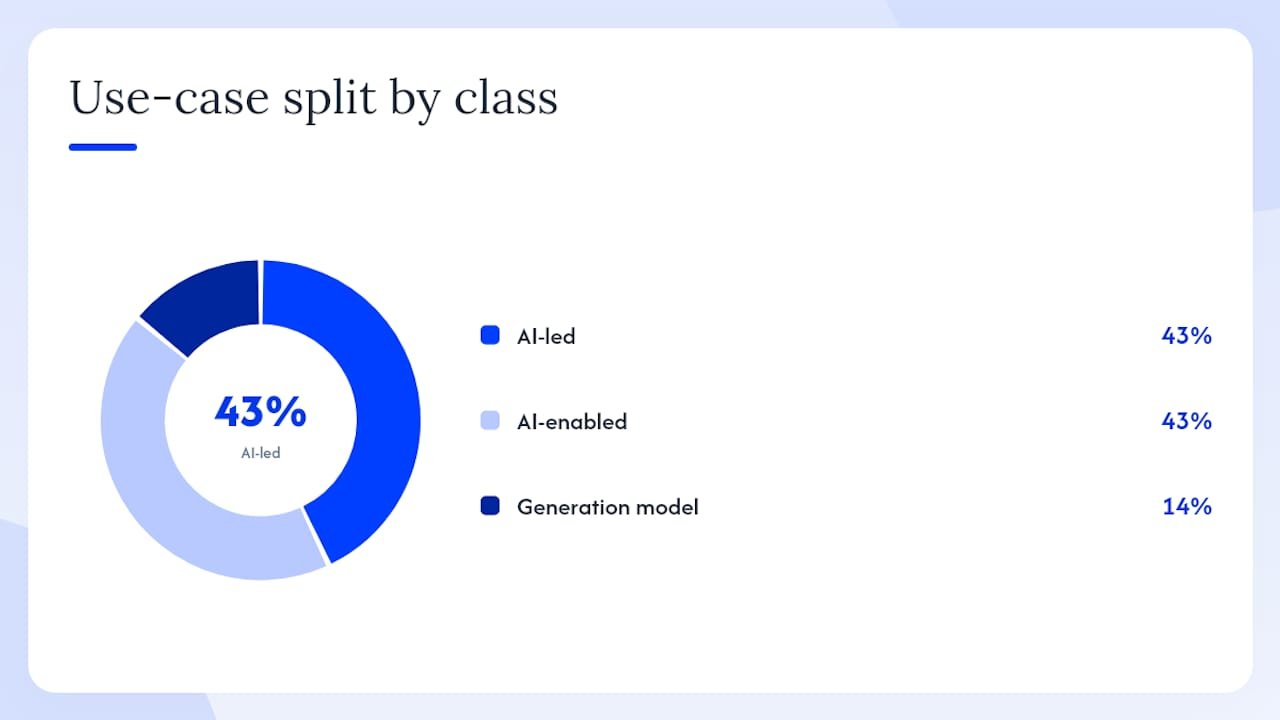
The market splits into two clear camps, and industry testing groups confirm the divide: AI-enabled editors (traditional timelines with AI assists layered in, like Premiere Pro or Filmora) suit creators who want frame-accurate control; AI-led editors (agentic tools that act on plain-language instructions, like Descript or OpusClip) suit creators who want speed and automation. Most working creators end up using both.
Key Takeaways
The most effective AI video editing strategy pairs an AI-led tool for speed and cleanup with a professional editor for any project that needs frame-accurate polish or broadcast-quality output.
| Point | Details |
|---|---|
| Match tool class to workflow | AI-led tools (Descript, OpusClip) prioritize speed; AI-enabled tools (Premiere Pro, Filmora) prioritize control. |
| Check free tier limits first | Most free plans add watermarks or cap resolution; test with your actual content before committing. |
| Hybrid workflows outperform single-tool approaches | Use AI for transcription, cleanup, and clip extraction, then finish complex projects in a pro NLE. |
| Generation costs add up fast | Tools like Runway and Google Veo charge per generation; set a project budget before iterating. |
| Willbuckley coaching | Willbuckley offers workflow setup and tool selection coaching for creators building AI video pipelines. |
Table of Contents
- How the top AI video editing tools compare at a glance
- Detailed picks: what each AI video editor actually does well
- How we tested and what to look for when you choose
- AI-led vs AI-enabled editors: which workflow actually fits you?
- When I choose an AI editor, here’s my honest thinking
- Willbuckley’s coaching can help you build the right AI video workflow
- Selected vendor docs and hands-on reviews to read next
- Sources
How the top AI video editing tools compare at a glance
You are critically reviewing LanguageTool suggestions for an English passage.
For each suggestion below, decide whether it is a REAL error in context. Apply a suggestion ONLY when you are confident it fixes a genuine typo, grammar, agreement, or punctuation mistake.
Do NOT apply a suggestion when:
- It capitalizes an ordinary word mid-sentence (LanguageTool often mistakes verbs/nouns for proper names, e.g. “mark” → “Mark” in “assess and mark damaged boards”)
- It changes specialized/domain vocabulary that is already correct
- It alters meaning, tone, or wording beyond the specific error
- You are unsure — leave the original wording unchanged
Minimum changes only. If no suggestion should be applied, return the passage unchanged.
Return ONLY the passage (corrected or original).
Suggestions:
- “denoise” → likely “Denise” (Possible spelling mistake)
Passage:
Pro Tip: Free tiers on CapCut, VEED, and Filmora add watermarks to exports. If you’re publishing client work or branded content, budget for at least the entry-level paid plan before you commit to a workflow.
Detailed picks: what each AI video editor actually does well
Descript
Descript’s core idea is simple and genuinely useful: edit the transcript, and the video follows. Delete a sentence in the text, and the corresponding audio and video disappear. Its Underlord co-editor goes further, accepting plain-language requests like “remove all filler words” or “center the speaker” and executing them across the whole file. The catch, as Descript’s own docs note, is that Underlord is still learning and needs clear instructions plus a human check on complex edits.
Standout features: Text-based cuts, filler-word removal, automated transcription, Underlord bulk edits, screen recording, and overdub voice cloning.
Pros: Fastest transcript-to-publish pipeline for podcasters and interview-based content; genuinely low learning curve for non-editors.
Cons: Not built for frame-accurate color work or VFX; voice cloning requires your own voice samples; free tier limits project length.
Ideal user: Solo podcasters, course creators, and content marketers who live in transcripts.
Runway
Runway is where AI video editing starts to feel like something genuinely new. Aleph 2.0 and Edit Studio let you target a single object in a frame — replace it, relight it, remove it — and then propagate that change across multiple shots without re-generating the whole clip. The preview-as-a-frame workflow means you see the edit before committing to a full generation, which cuts iteration time significantly. Technical documentation notes desktop and CLI clients, with in-context editing up to 30 seconds at 1080p.
Standout features: Object-level inpainting, relighting, multi-shot propagation, Gen-3 Alpha video generation, Edit Studio previews.
Pros: Best-in-class for VFX-style edits on existing footage; CLI access suits teams building automated pipelines.
Cons: 30-second clip limit for in-context editing; pricing climbs fast for high-volume generation; steeper learning curve than social tools.
Ideal user: Marketing teams producing campaign variants, filmmakers, and VFX-focused creators.
Adobe Premiere Pro
Premiere Pro remains the professional standard, and its AI layer has grown substantially. Firefly-powered Generative Extend fills gaps between clips without visible cuts, Sensei handles auto-reframe for multi-format exports, and the Speech to Text tool produces captions accurate enough for broadcast. G2 comparisons confirm that Premiere still leads on low-level clip manipulation and frame-accurate color work, even as transcript-first tools pull ahead on speed for simpler tasks.
Standout features: Generative Extend, auto-reframe, Speech to Text, Lumetri Color, Frame.io collaboration, full VFX pipeline via After Effects.
Pros: No output resolution ceiling; integrates with the full Adobe ecosystem; industry-standard for agency and broadcast work.
Cons: Subscription-only at ~$55/month; steep learning curve for newcomers; overkill for quick social clips.
Ideal user: Professional editors, agencies, and anyone delivering broadcast or cinema-quality output.
CapCut
CapCut punches well above its price point. The auto-caption tool is fast and accurate enough for most social content, the AI reframe handles vertical-to-horizontal conversions cleanly, and the template library means you can go from raw footage to a polished Reel in under ten minutes. It’s a mobile-first tool that also runs in the browser, which makes it genuinely flexible for creators who edit on the go.
Standout features: Auto-captions, smart reframe, background removal, beat-sync, trending templates, text-to-video.
Pros: Free tier is genuinely useful; very low learning curve; strong mobile experience.
Cons: Free exports carry a watermark; less suited to long-form or complex multi-track projects; some AI features are platform-specific.
Ideal user: Social media creators, short-form video producers, and anyone on a tight budget.
Synthesia
Synthesia removes the camera entirely. You type a script, pick an avatar from its library of over 230 presenters, choose a language, and get a finished talking-head video. It’s not trying to replace a film production — it’s solving a specific problem: producing consistent, localized training or explainer content at scale without booking a studio.
Standout features: 230+ AI avatars, 140+ languages, custom avatar creation, branded templates, screen recording overlay.
Pros: No filming required; fast localization for global teams; clean, professional output for corporate training.
Cons: Avatar realism has limits for consumer-facing content; no timeline editing for existing footage; paid plans required for most useful features.
Ideal user: L&D teams, HR departments, and marketers producing multilingual explainer content.
OpusClip
OpusClip does one thing and does it well: it watches your long video, scores moments by engagement potential, and packages the best clips with captions and aspect-ratio formatting for TikTok, Reels, or Shorts. You don’t touch a timeline. For creators repurposing weekly podcasts or webinars into social content, it removes the most tedious part of the workflow entirely.
Standout features: AI highlight scoring, auto-captions, speaker tracking, multi-platform export presets, clip virality score.
Pros: Near-zero manual effort for clip extraction; fast turnaround; good caption accuracy.
Cons: Limited creative control over clip selection; occasional misses on nuanced content like technical interviews; free tier caps monthly usage.
Ideal user: Podcasters, webinar hosts, and content teams repurposing long recordings at scale.
Pictory
Pictory is built for marketers who have a lot of long-form content and not enough time to repurpose it. Feed it a blog post URL, a webinar recording, or a script, and it pulls relevant stock footage, adds captions, and outputs a branded short video. The automation isn’t perfect — you’ll want to review scene matches — but it compresses a two-hour editing task into about twenty minutes.
Standout features: Blog-to-video, auto-summarize, scene-to-stock matching, branded captions, highlight reel extraction.
Pros: Handles text and video input; good for high-volume content teams; clean branded output.
Cons: Stock footage matching can feel generic; limited creative control over pacing; best results require some manual curation.
Ideal user: Content marketing teams repurposing webinars, blog posts, and podcast episodes.
VEED
VEED’s strength is its accessibility. The web interface is clean, the auto-caption tool is one of the fastest available, and the social export presets handle aspect ratios and sizing without any manual adjustment. It’s not trying to compete with Premiere Pro — it’s trying to make professional-looking social content achievable for someone who has never used a video editor before.
Standout features: Auto-captions, eye contact correction, background removal, teleprompter, social export presets, team workspaces.
Pros: No software to install; fast caption generation; good collaboration features for small teams.
Cons: Free plan adds watermarks; limited timeline depth for complex edits; export resolution capped at 1080p on lower plans.
Ideal user: Marketers, small business owners, and teams who need fast, clean social video without a steep learning curve.
Wondershare Filmora
Filmora sits at the intersection of approachable and capable. It has a real timeline, real color tools, and a growing set of AI features — smart cutout, AI noise reduction, auto-beat sync — without the intimidating interface of Premiere Pro. For someone making their first YouTube videos or editing client testimonials, it’s a genuinely comfortable place to start.
Standout features: AI smart cutout, denoise, auto-beat sync, motion tracking, speed ramping, built-in stock library.
Pros: Affordable annual plan; available on Mac, Windows, iOS, and Android; good balance of manual and AI tools.
Cons: Watermark on free exports; AI features less advanced than dedicated AI-first tools; not suited for broadcast-level output.
Ideal user: Beginners, small business owners, and YouTube creators who want a full timeline without the complexity of pro software.
Google Veo / Flow (Veo 3.1)
Google’s Veo 3.1 is the most technically capable text-to-video model available to developers right now. Google’s own prompting guide documents native audio generation, multiple aspect ratios, and structured prompting workflows, with developer access via Vertex AI. Flow, the creative workspace built on top of Veo, gives filmmakers a more visual interface for scene generation and character consistency. This is less a traditional editor and more a generation engine you build workflows around.
Standout features: Native audio generation, multi-aspect ratio output, structured prompting, Vertex AI API access, character and scene consistency.
Pros: Most capable open-access text-to-video model; developer-friendly API; strong for enterprise and research use cases.
Cons: Not a traditional editor; requires prompt engineering skill; Vertex AI pricing adds up at scale.
Ideal user: Developers, enterprise teams, and technically confident creators building custom video pipelines.
Other tools worth knowing
invideo AI converts a script or topic prompt into a full video with voiceover and stock footage — useful for marketers who need volume over nuance. Vyond specializes in animated explainer videos with character rigs and scene builders, making it the go-to for corporate training teams that want animation without hiring an animator. Capsule focuses on team video production workflows with brand kit enforcement and AI scene suggestions, suited to marketing teams that publish frequently. Eddie AI mirrors Descript’s transcript-based approach but targets podcast editors specifically, with a cleaner interface for interview cleanup. LiveAvatar by HeyGen creates a custom avatar from a short video sample, then lets you generate new videos in your likeness — useful for creators who want personalized video at scale without re-filming. revid.ai targets short-form viral content with AI scripting and trending templates baked in. LTX Studio takes a storyboard-first approach to AI video generation, giving directors scene-level control over character consistency and shot composition. Adobe Firefly handles generative image and video assets within the Creative Cloud ecosystem, most useful as a complement to Premiere Pro rather than a standalone editor.
Pro Tip: Before committing to any tool, run your actual use case through the free tier. A tool that scores well in reviews may still feel wrong for your specific content type — a 15-minute test with your own footage tells you more than any comparison table.
How we tested and what to look for when you choose
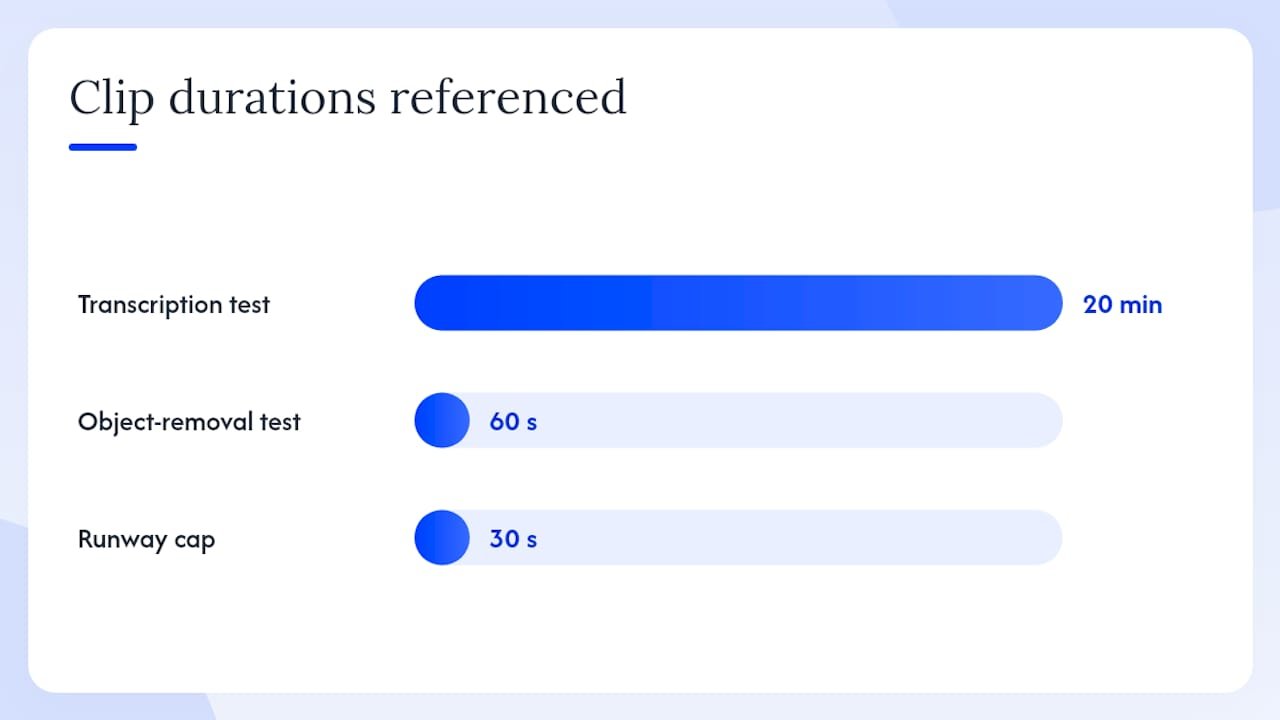
Every tool in this list was evaluated against the same set of tasks: transcription accuracy on a 20-minute interview, auto-caption quality on a fast-paced social clip, object removal or reframe on a 60-second clip, and export speed and quality at 1080p. Where vendor documentation described specific limits (clip length caps, resolution ceilings, watermarking rules), those were verified against the published specs and noted in the profiles above.
The practical checklist before you pick a tool:
- What’s your primary output format? Short-form social clips, long-form YouTube, training videos, and broadcast content each favor different tools.
- How much manual control do you want? If you need frame-accurate color grading or precise VFX, you need a real timeline. If you want speed, an AI-led tool will serve you better.
- Are you repurposing existing content or generating new video? Repurposing tools (OpusClip, Pictory, Descript) and generation tools (Synthesia, Veo, invideo AI) solve different problems.
- Does the free tier export without a watermark? For client or branded work, watermarks are a dealbreaker. Check before you build a workflow.
- What are the clip length limits? Runway’s in-context editing caps at 30 seconds. Some tools limit free-tier projects to a few minutes. Know the ceiling before you hit it.
- Do you need team collaboration? VEED, Capsule, and Descript have workspaces built for teams. Most mobile-first tools are still single-user.
- Is voice cloning or avatar generation in your workflow? Licensing terms vary significantly. Read the terms of service before using these features for commercial content.
On pricing: the jump from free to paid is worth it when you’re publishing regularly, need watermark-free exports, or want higher export resolution. Most tools tier their AI features — the best models sit behind the mid-tier or higher plans. For AI-driven marketing workflows, the cost of a $25/month tool is usually recovered in the first hour of editing time saved.
Red flags to watch: tools that cap free exports at 720p, voice cloning licenses that restrict commercial use, and agentic editors that don’t let you undo individual AI actions. Always keep your source master files — once you’ve processed through an AI pipeline, going back to make a precise change often means starting from the original.
AI-led vs AI-enabled editors: which workflow actually fits you?
The distinction matters more than most comparison articles admit. An AI-enabled editor is a traditional timeline with AI tools bolted on. You’re still making every cut, but the AI handles transcription, noise removal, reframing, and caption generation. Adobe Premiere Pro, Wondershare Filmora, and CapCut all fit this model. You stay in control; the AI saves you time on repetitive tasks.
An AI-led editor hands more of the decision-making to the tool. You give it instructions or a long video, and it decides what to cut, what to caption, and what to package. Descript’s Underlord, OpusClip, and Pictory work this way. Speed is the payoff; granular control is what you give up.
Here’s a simple decision matrix:
| Your situation | Tool class | Best match |
|---|---|---|
| Solo creator, social clips, tight schedule | AI-led | OpusClip, CapCut, revid.ai |
| Podcast or interview repurposing | AI-led | Descript, Eddie AI |
| Marketing team, branded content | AI-enabled + templates | VEED, Pictory, Capsule |
| Training / explainer video production | AI-led (avatar) | Synthesia, Vyond, LiveAvatar |
| VFX, object-level edits, campaign variants | AI-enabled (advanced) | Runway, Adobe Premiere Pro |
| Developer / enterprise text-to-video | Generation model | Google Veo / Flow |
| Beginner, first YouTube channel | AI-enabled (beginner) | Filmora, CapCut |
A realistic AI-led workflow looks like this: upload a 45-minute podcast recording to Descript, let Underlord remove filler words and silences, export the clean transcript, then use OpusClip to pull the five strongest 60-second clips for social. Total hands-on time: roughly 20 minutes.
A realistic AI-enabled workflow for a polished YouTube video: record in 4K, import to Premiere Pro, use Speech to Text for captions, apply Generative Extend to smooth a jump cut, run Sensei auto-reframe for a Shorts version, then color grade manually. The AI handles the tedious parts; you control the creative decisions.
Zapier’s roundup of AI video generators is a useful starting point for discovery, but hands-on testing with your own content is the only reliable way to know which class fits your workflow. The tools that feel obvious after ten minutes are usually the right ones.
For creators who also want to understand how video fits into a broader content strategy, the social media marketing guide from Rooted Up covers practical repurposing workflows worth reading alongside this comparison.
When I choose an AI editor, here’s my honest thinking
The tool I reach for first depends entirely on the project. For anything transcript-heavy — a podcast episode, a recorded coaching call, a webinar — Descript is the starting point. The workflow is: transcribe, let Underlord clean the filler, pull the best moments as clips, then do a final manual pass before export. That sequence handles about 80% of what most content creators actually need.
For anything that requires a polished final product — a brand video, a long-form YouTube piece, or anything going to a client — I finish in a pro NLE. The AI does the heavy lifting on cleanup and captioning; the timeline work stays human. That hybrid approach is what G2 comparisons consistently point toward for complex projects: AI for speed, professional editor for precision.
One thing I’d add that most guides skip: watch your generation costs. Tools like Runway and Veo charge per generation or per credit, and it’s easy to burn through a monthly budget on iterations. Set a project budget before you start generating, keep your source master files untouched, and do your creative decisions in the preview stage before committing to a full render.
Willbuckley’s coaching can help you build the right AI video workflow
Picking a tool is the easy part. Building a workflow that actually saves you time — and fits your content type, publishing schedule, and budget — is where most creators get stuck. Willbuckley offers practical coaching and workflow setup for affiliate marketers and content creators who want to use AI video tools without the trial-and-error.

You get help with tool selection matched to your actual use case, prompt chain templates for tools like Descript and OpusClip, and a step-by-step pipeline setup so you’re not starting from scratch. One example: mapping a podcast-to-social repurposing pipeline that takes a 60-minute recording and produces five platform-ready clips with captions in under 30 minutes, using tools you already have access to. If you’re comparing agency vs in-house AI approaches and want a clearer picture of what’s realistic for a solo creator or small team, that’s exactly the kind of clarity the coaching covers. Visit the Willbuckley coaching page to see what’s available and take the next step.
Selected vendor docs and hands-on reviews to read next
These are the primary sources worth bookmarking before you purchase or commit to a workflow:
- Descript Underlord help documentation — official guide to what the agentic co-editor can and can’t do, including known limitations and how to write effective instructions.
- Runway Aleph 2.0 and Edit Studio release notes — covers object-level editing, multi-shot propagation, and the preview workflow that reduces generation iterations.
- Google Veo 3.1 prompting guide — structured prompt formulas, supported aspect ratios, native audio capabilities, and Vertex AI developer access.
- Buffer’s tested AI video editor roundup — hands-on comparison of AI-enabled vs AI-led tools with practical workflow recommendations.
- Zapier’s AI video generator list — useful for initial discovery of tools not covered here; pair with hands-on testing for final decisions.
- G2 comparison: Adobe Premiere Pro vs Descript — user review data on ease-of-use, control, and transcription accuracy across both tools.
Before purchasing any tool, verify the export resolution limits for your plan tier, check the clip length caps for AI generation features, and read the voice cloning and avatar licensing terms if you plan to use those features for commercial content. Community forums for Descript (Reddit’s r/descript) and Runway (Discord) are active and useful for troubleshooting and sharing prompt templates.
Sources
- The 11 Best AI Video Editors in 2026, Tried and Tested
- Underlord (beta): Your AI co-editor in Descript – Descript Help
- Runway News | Introducing Aleph 2.0 and Edit Studio
- Ultimate prompting guide for Veo 3.1
- G2 compare: Adobe Premiere Pro vs Descript
- Underlord | Your AI Video & Podcast Editing Assistant | Descript