

The fastest way to scale your content distribution is this: pick a context-first AI tool, run one pillar asset through a repurposing workflow, and edit the outputs for your voice. That’s the whole system. Everything else is just choosing the right tool for your situation.
Here’s a quick map of which tool fits where:
- Descript — Best for teams that want editing control and repurposing in one workspace; ideal if you work with audio and video regularly.
- Opus Clip — Best for video-first teams that need fast, scalable short-clip extraction from long recordings.
- Castmagic — Best for podcasters who want episodes turned into show notes, newsletters, and social posts automatically.
- Repurpose.io — Best for creators who need fully automated cross-platform publishing and RSS-based workflows.
- ContentStudio — Best for small teams that want planning, repurposing, and multi-channel publishing under one roof.
- Jasper — Best for marketers who need high-speed written variants for social, email, and ad copy.
- Canva — Best for creators who need visual assets (carousels, quote cards) paired with short AI-generated copy.
- Copy.ai — Best for solo marketers who need quick caption and ad-copy variants with minimal setup.
- Postiv — Best for solo creators publishing long-form video who want rapid short clips and captioning.
If you’re a solo creator starting out, try Postiv or Copy.ai. If you run a small team, ContentStudio or Descript gives you the most workflow coverage. For podcasters, Castmagic is the clearest fit. For enterprise-scale automation, look at Repurpose.io or agentic platforms built on brand-kit integrations.
Key Takeaways
The most reliable AI content repurposing workflow combines a context-first tool, a clear voice anchor, and a human editing pass on every batch of outputs.
| Point | Details |
|---|---|
| Start with one pillar asset | Pick one high-value piece and extract 5–7 angles before opening any tool. |
| Use context-first ingestion | Paste your source or transcript directly; this preserves your voice better than prompt-only workflows. |
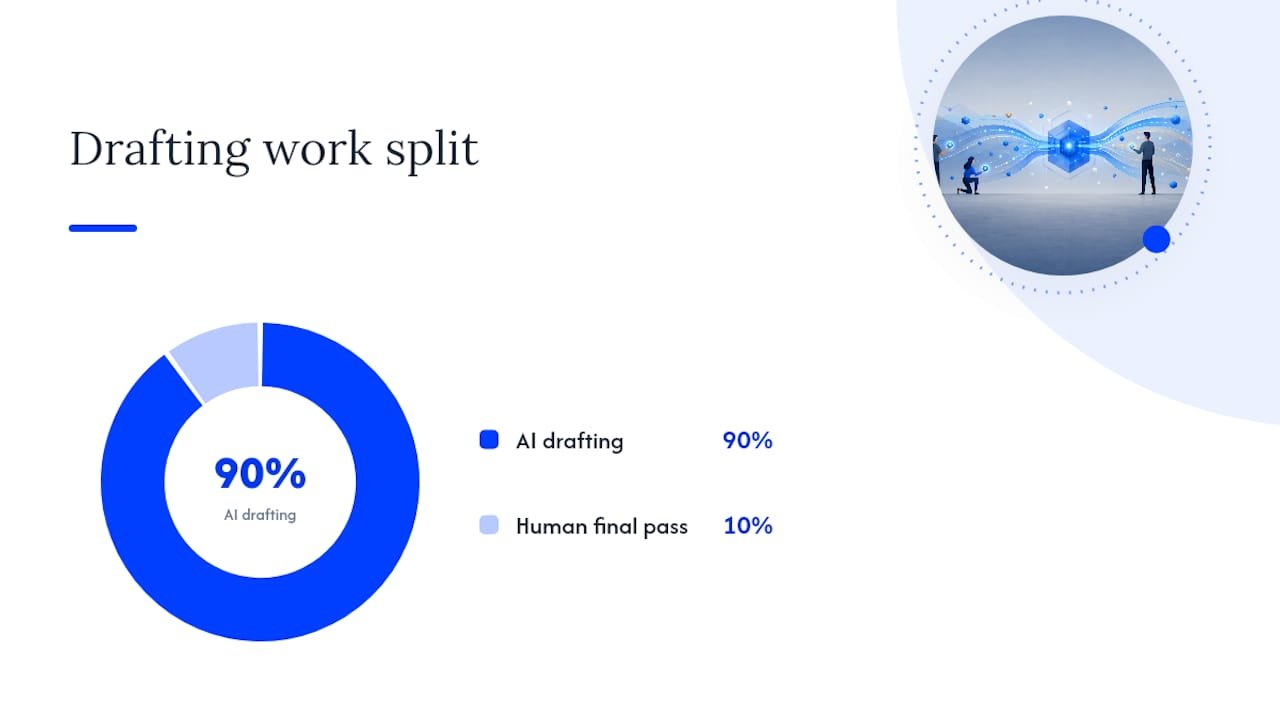
| Apply the 90/10 editing rule | Let AI draft roughly 90% of the content; you add the voice, anecdotes, and specific calls to action. |
| Watch for voice drift | Check every third output against your own writing; a voice anchor and drift check keep quality consistent. |
| Willbuckley coaching option | For teams or high-stakes launches, a structured setup session gets you to a working pipeline faster than solo trial-and-error. |
Table of Contents
- How do AI content repurposing tools compare side by side?
- What should you look for in an AI repurposing tool?
- Tool-by-tool breakdowns: what each one actually does well
- How were these tools evaluated?
- A practical AI repurposing playbook: turn one asset into 15+ pieces
- When full automation helps, and when human input matters more
- Want faster results without the trial-and-error?
- Sources
How do AI content repurposing tools compare side by side?
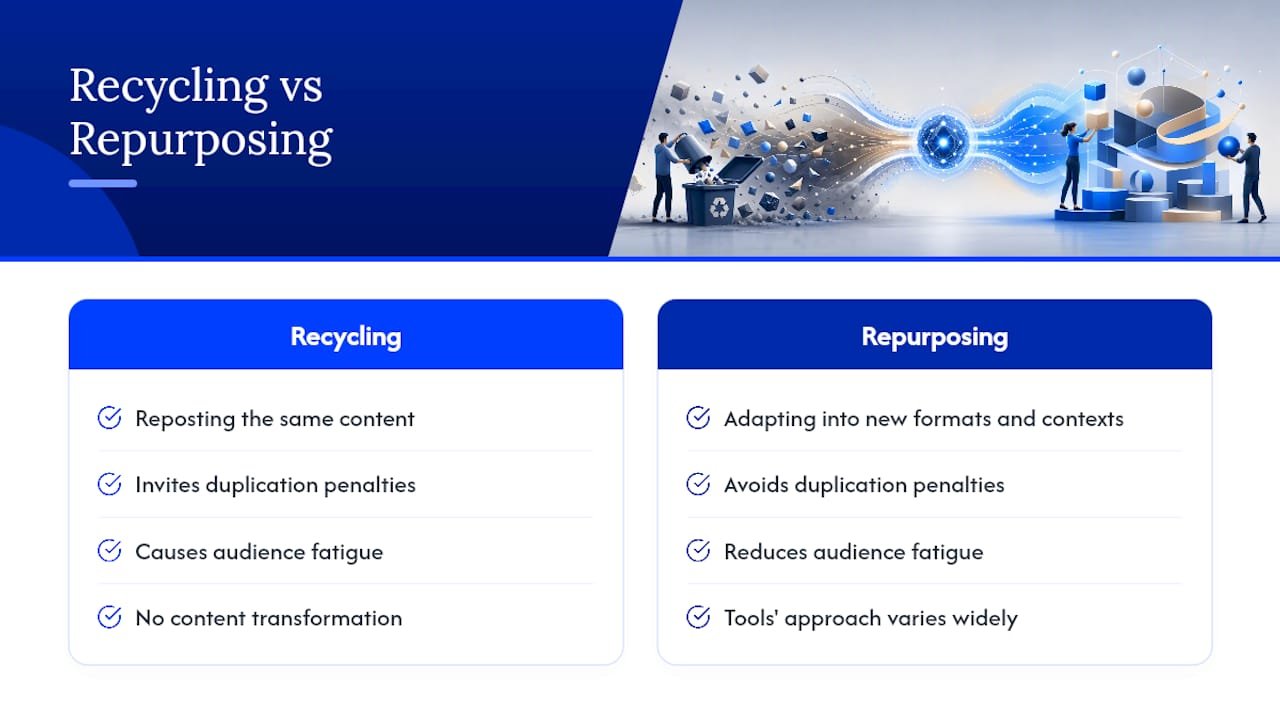
Content repurposing is not the same as recycling. Recycling means reposting the same content; repurposing means adapting it into new formats and contexts, which avoids duplication penalties and audience fatigue. The tools below approach that transformation in very different ways.
Pro Tip: If a tool doesn’t offer a free tier or at least a 7-day trial, skip it for now. You need to test your own content through it before committing to a subscription.
What should you look for in an AI repurposing tool?
Not every tool that calls itself an AI content repurposing platform actually ingests your source material. That distinction matters more than any feature list.
Core selection criteria:
- Input flexibility. Can it accept raw video, audio files, transcripts, URLs, or RSS feeds? A tool that only accepts text prompts will drift from your voice fast.
- Output fidelity. Does it produce platform-native formats (vertical video, Twitter thread structure, LinkedIn post length) or generic drafts you have to reformat manually?
- Brand voice controls. Can you feed it a voice sample, a style guide, or a tone anchor? Context-first tools that ingest your source material consistently preserve your unique phrasing and examples better than prompt-only workflows.
- Automation and batching. Can it process multiple assets in a queue, or does each output require a manual trigger?
- Integrations. Does it connect to your CMS, Zapier, or your social scheduler? A tool that lives in isolation adds a manual handoff step every time.
- Pricing transparency. Are overage fees clearly listed? Some tools charge per minute of transcription or per output, which adds up fast at scale.
What to test in your trial session:
- Paste a 10-minute transcript and request a LinkedIn post, a newsletter blurb, and a short-video script. Compare the outputs to your actual writing style.
- Check whether the tool preserves your specific examples and phrasing, or replaces them with generic equivalents.
- Try exporting in at least two formats and see whether the files are usable without reformatting.
Red flags to watch for:
- No source ingestion (prompt-only input with no way to paste your content).
- Hidden overage fees on transcription minutes or output volume.
- Weak or missing export options (no direct download, no CMS push).
- No way to set or save a voice anchor across sessions.
Pro Tip: To validate voice match quickly, paste three paragraphs of your own writing as a style reference before generating any output. Then compare the AI draft to something you actually published. If you can’t tell which sentences are yours without looking, the tool is doing its job.
Tool-by-tool breakdowns: what each one actually does well
Postiv
Postiv focuses on rapid short-video extraction from long-form content. You upload a video, and it identifies the strongest clip moments, adds captions, and formats them for social. The workflow is lean and fast, which makes it a good fit for solo creators who publish consistently on YouTube or similar platforms and want to repurpose without a dedicated editor. Pricing is on paid tiers with no widely advertised free plan. The main limitation is that it’s video-in, video-out: don’t expect blog drafts or newsletter copy from it.
Pros: Fast clip extraction, caption automation, low learning curve.
Cons: Limited output variety, no text-based repurposing, minimal brand voice controls.
Repurpose.io
Repurpose.io is built for automation. Connect your podcast RSS feed, YouTube channel, or social account, and it automatically converts and distributes content across platforms on a schedule. Agentic-style platforms like this (Typeface) are most useful when you have a consistent publishing cadence and want the pipeline to run without manual triggers. The trade-off is customization: brand voice controls are limited, and outputs often need a light editing pass to feel personal.
Pros: True end-to-end automation, strong scheduling connectors, RSS integration.
Cons: Limited voice customization, outputs can feel generic, less useful for one-off campaigns.
Opus Clip
Opus Clip takes long videos and extracts the most engaging moments as short clips, with framing suggestions and auto-captions. It’s fast and scales well for video-first teams that produce a lot of recorded content (webinars, interviews, course recordings). The free tier lets you test it with your own content before committing. Where it falls short is written output: it won’t produce a newsletter or a LinkedIn post from your video.
Pros: Fast clip generation, platform-oriented framing, free tier available.
Cons: Video-only output, no written repurposing, hook quality varies by source material.
Castmagic
Castmagic is purpose-built for podcasters. Upload an episode, and it generates show notes, timestamped summaries, social posts, and newsletter blurbs from the transcript. The episode structuring is genuinely useful, and the outputs tend to stay closer to the source material than general-purpose tools. Pricing starts around $29/month. The limitation is that it’s audio-first: if your primary asset is a blog post or a video without a strong audio track, it’s less useful.
Pros: Strong show-note generation, social post extraction, newsletter blurbs from audio.
Cons: Audio-focused, limited visual output, not ideal for text-first workflows.
Descript
Descript is the most versatile tool on this list for teams that want both editing control and repurposing outputs. You edit audio and video by editing the transcript, which makes it unusually fast for producers who think in text. It also exports clips, social copy, and blog drafts from the same workspace. The free tier is functional enough to test your workflow. The main cost consideration is that transcription minutes and team seats add up, so factor those into your total cost of ownership.
Pros: Transcript-based editing, multiformat exports, strong team features.
Cons: Learning curve for new users, transcription costs at scale, not the fastest for pure clip extraction.
ContentStudio
ContentStudio combines content planning, repurposing, and multi-channel publishing in one dashboard. For small teams that currently juggle a separate scheduler, a separate content calendar, and a separate repurposing tool, consolidating into ContentStudio can reduce friction. It handles social posts and blog drafts reasonably well. The repurposing features are solid but not as deep as dedicated tools like Castmagic or Descript for audio/video work.
Pros: Integrated calendar, multi-channel publishing, good for text-based repurposing.
Cons: Less powerful for audio/video, repurposing depth is moderate, not ideal for solo creators.
Jasper
Jasper is a writing assistant with a wide template library covering social posts, email sequences, ad copy, and blog sections. For marketers who need high-volume written variants quickly, it’s fast and collaborative. The brand voice feature lets you save a tone profile and apply it across outputs. Where Jasper falls short is source ingestion: it works best when you give it structured prompts rather than raw transcripts or long-form source material.
Pros: Wide template library, collaborative editing, brand voice profiles.
Cons: Prompt-dependent (weaker at ingesting raw source material), subscription cost adds up for teams.
Canva
Canva added AI copy and video tools to its design platform, which means you can now generate a carousel, a quote card, and a short caption in the same workspace where you design the visual. For creators who need visual assets alongside written copy, that pairing saves real time. The AI writing features are functional but not as deep as dedicated copy tools. Think of Canva as the right choice when the visual is the primary output and the copy is secondary.
Pros: Design and copy in one workspace, ready-made social formats, free tier available.
Cons: AI writing is surface-level, not built for long-form repurposing, limited automation.
Copy.ai
Copy.ai generates short-form copy variants fast. Captions, ad headlines, email subject lines, social posts: it handles all of these with minimal setup. The free tier is generous enough to test it seriously. For a solo marketer who needs to produce a week’s worth of caption variants in an hour, it’s hard to beat on speed. The limitation is depth: it’s not built for turning a 45-minute webinar into a full content suite.
Pros: Fast short-copy generation, generous free tier, broad template library.
Cons: Limited to short-form output, no audio/video ingestion, minimal automation.
How were these tools evaluated?
Each tool was assessed against the same set of dimensions so the comparison stays fair and repeatable.
Evaluation dimensions used:
- Output quality relative to the source material (did the output preserve the original’s examples and phrasing?)
- Edit time required to make the output publishable
- Automation scale (can it process multiple assets without manual re-triggering?)
- Input flexibility (video, audio, transcript, URL, RSS)
- Integration depth (CMS, Zapier, social schedulers, transcription APIs)
- Pricing transparency (are overage fees and plan limits clearly stated?)
- Team features (collaboration, shared workspaces, role permissions)
The standard test used for each tool:
The same 10-minute transcript was fed into each tool with a request to produce three outputs: a short-video clip script, a LinkedIn post, and a newsletter blurb. Where a tool couldn’t accept a raw transcript, a structured prompt containing the same content was used instead. Outputs were compared against the source for voice fidelity, format accuracy, and edit time.
Limits to note: Testing was done at standard paid or free-tier plan levels. Enterprise-tier features (custom brand kits, API access, dedicated support) were not tested directly. Pricing bands reflect publicly listed rates and may change.
A practical AI repurposing playbook: turn one asset into 15+ pieces
The workflow that holds up across tools and team sizes is a five-step loop, and multiple practitioner playbooks converge on the same structure: pick your pillar asset, feed the source, generate platform-native drafts, edit for voice, then schedule and measure.
Here’s how to run it in a focused session:
- Pick your pillar asset. Choose one high-value piece: a recorded webinar, a long blog post, a podcast episode, or a recorded interview. The richer the source, the more you’ll extract from it.
- Extract atomic angles. Before opening any tool, read or skim the source and pull out 5–7 distinct points, stories, or arguments. Each one becomes a separate output thread.
- Feed the source to a context-first tool. Paste the full transcript or source text into your chosen tool. Context-first ingestion preserves your examples and reduces the editing pass you’ll need later. Add a voice anchor: three sentences written in your own style that the tool can reference.
- Generate platform-native drafts. Request outputs in specific formats: a LinkedIn post (under 1,300 characters), a five-tweet thread, a newsletter blurb (150 words), three short-video scripts (60 seconds each), and three visual quote cards. That’s already 13 pieces from one asset.
- Edit for voice, then schedule. AI should handle roughly 90% of the drafting work; you own the final 10%: the hot take, the personal anecdote, the specific call to action. Teams that skip this pass produce generic outputs that underperform. Schedule everything through your publishing tool and track engagement by format.
Weekly time budget:
- 1-hour session: one pillar asset, three to five outputs, one channel.
- 3-hour session: one pillar asset, full suite of 15+ outputs, three channels.
Example workflow mapping (one blog post as the source):
- 2 LinkedIn posts (different angles)
- 1 five-tweet X thread
- 5 standalone tweets
- 1 newsletter blurb
- 3 short-video scripts
- 3 visual quote cards
That’s 15 pieces. Add a podcast summary or a carousel and you’re past 17.
Pro Tip: Run a voice-match QA pass by reading two AI-drafted outputs aloud next to a paragraph you actually wrote. If the rhythm and word choice feel different, add one more editing pass. Stop iterating when the gap closes, not when the output is “perfect.”
Voice drift is a real risk when you rely on prompt-only generation across many outputs. A voice anchor and a drift check after every third output keeps the quality consistent.
When full automation helps, and when human input matters more
Here’s a perspective worth sitting with: the tools in this guide are genuinely useful, but they’re not all equally suited to every situation. The question isn’t which tool is best in the abstract. It’s which approach fits your actual content goals right now.
Full automation (Repurpose.io, Opus Clip, agentic pipelines) makes the most sense when your primary goal is volume and distribution speed. If you publish consistently, have a clear format, and your content doesn’t depend on a highly personal voice, automation handles the heavy lifting well. Social programs, evergreen clip libraries, and RSS-driven cross-posting are all good candidates.
Where automation tends to fall short is in high-stakes, voice-sensitive work: a signature framework you’re known for, a launch campaign where every word carries weight, or a brand that lives or dies on a specific tone. In those situations, the failure modes are subtle but costly. You’ll notice them as voice drift across posts, hooks that don’t land, and CTAs that feel slightly off. Those aren’t tool failures exactly. They’re signals that the workflow needs a human layer that prompt engineering alone can’t replace.
The practical signal to watch: if your AI-generated posts are getting lower engagement than your manually written ones, and the gap is widening rather than narrowing, that’s not a volume problem. It’s a voice problem. More outputs won’t fix it. A tighter editing process, a better voice anchor, or a coaching session to rebuild the workflow from the source will.
Want faster results without the trial-and-error?
There are solid tools in this guide, and for many creators, picking one and running the five-step workflow above is the right move. But if you’re managing a team, running repeatable campaigns, or preparing for a high-value launch, the setup phase (choosing the right tool, building your voice anchor, configuring integrations) can eat weeks of trial time you don’t have.

Willbuckley offers coaching and workflow setup sessions designed to get you from tool selection to a working repurposing pipeline in a single week. That includes picking the right tool for your asset type, building your voice anchor, configuring your first automated workflow, and running a one-week pilot so you can see real outputs before you scale. For teams with more than two people or anyone preparing for a launch, that structured start tends to pay back faster than solo experimentation. Visit Willbuckley to see how the coaching works, or go straight to the setup session page to book your first session.
Sources
- How to Repurpose Content With AI: 2026 Playbook
- Content Repurposing with AI – 5 Ways to Repurpose Content
- AI Content Repurposing: A Workflow That Holds Up Past the First Three Posts
- Content Recycling vs. Content Repurposing