

Start with a free AI content calendar generator, draft a month of posts, then export that draft into your scheduler before you touch a paid plan. Solo creators do best with a quick generator or template; marketing teams and agencies need a planner with real integrations and export options. Most of the tools below export to CSV or sync directly with schedulers, so the calendar you build today is one you can actually publish tomorrow.
TL;DR:
- Tools like Optimo and TestMu AI allow quick testing of a month’s content without requiring payment or personal info, ideal for immediate experimentation.
- For multi-channel campaigns, tools that automatically adapt captions and provide asset management, like Lapis and Craft Content, justify higher costs through efficiency gains.
- Accurate export options, channel-specific adaptation, and alignment with campaign offers are critical to prevent wasted time and mismatched content across platforms.
- Collaboration features such as shared editing, ownership tags, and inline comments are essential for teams over three people to streamline workflows and reduce miscommunication.
- Prioritizing workflow and human review over tool features ensures output is brand-aligned, disclosures are in place, and content actually reaches publishing rather than just planning.
Table of Contents
- What Is the Best AI Content Calendar Tool Right Now?
- How Do You Choose the Right AI Content Calendar Tool?
- How Do You Turn an AI-Generated Calendar Into Published Content?
- How Does an AI Content Calendar Connect to Your Scheduler?
- What Should Affiliate Marketers Know Before Adopting One?
- What Collaboration Features Actually Matter for Teams?
- Can You Customize Content Types and Scheduling Cadence?
- What Tracking and Analytics Should You Expect?
- Is Your Content Data Safe in These Tools?
- Why Most Advice on This Topic Misses the Real Bottleneck
- Want a Done-for-You Version of This Workflow?
- Sources
What Is the Best AI Content Calendar Tool Right Now?
Nobody needs a definition of a content calendar. What you need is a fast answer to “which tool do I open first?” Here’s the shortlist, organized by what each one actually does well rather than by hype.
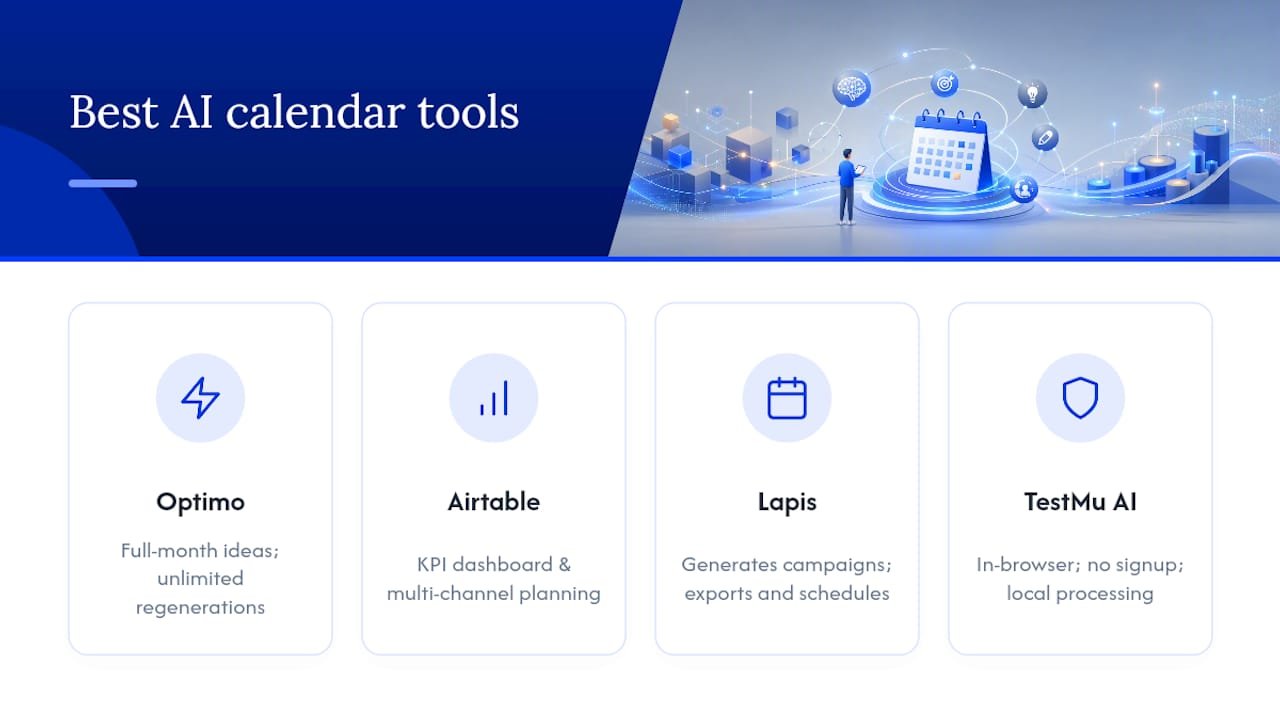
Optimo turns a single brief into a full month of dated post ideas at no cost, with unlimited regenerations. If you want to test the concept in the next five minutes, this is where to start.
Airtable’s AI content calendar template builds ideas directly into a workspace with a KPI dashboard, so your calendar lives next to the metrics that prove it worked. Airtable’s own template description highlights AI-assisted idea generation paired with multi-channel planning, which is exactly what a five-person marketing team needs and a solo creator usually doesn’t.
Easy-Peasy’s content calendar generator leans social-first, producing channel-specific hooks and formats rather than generic post titles. User feedback on Trustpilot shows steady adoption across its template and extension offerings, a decent signal for a tool still expanding its feature set.
Storyflow takes a brief and outputs editable cards on a canvas, each one convertible into a full brief or script. According to Storyflow’s own product page, this cards-to-briefs pipeline is designed specifically to cut the handoff time between “idea” and “something a writer can execute.”
Lapis’ Campaign Planner generates multi-platform campaign plans and exports or schedules them across social and email in one motion. Lapis positions itself as a generator first, not just a calendar with a scheduling bolt-on, which matters if you’re running the same campaign across four channels at once.
Craft Content claims a week of multi-channel content in under two minutes, complete with brand-voice drafting and native publishing. Craft Content’s site frames speed and voice-matching as its two headline features.
TestMu AI’s generator runs entirely in-browser, exports to CSV or Markdown, and requires no signup. TestMu AI keeps processing local rather than uploading your brief to a server, which is worth knowing if you’re testing sensitive campaign ideas before a client sees them.
If you only try one thing today, try Optimo or TestMu AI. Neither asks for a card, and both get you a testable month of content before your coffee’s cold.
How Do You Choose the Right AI Content Calendar Tool?
The right tool depends on three things: how many people touch the calendar, how many channels you publish to, and what happens after the AI generates a post idea.
Start by matching team size to tool type. A solo creator rarely needs a KPI dashboard; a five-person team without one will drown in Slack threads asking “did anyone check the Tuesday post?” Channel mix matters just as much. If you’re only posting to Instagram and a newsletter, a generator with basic export handles it. Run campaigns across five platforms and you need genuine platform-specific adaptation, not a single post copy-pasted five times.
Before committing to a paid plan, run three tests during any free trial:
- The export test. Generate a month, then try to get it out. Does it land as a clean CSV, or do you have to retype everything by hand?
- The platform-adaptation test. Feed it one campaign idea and check whether the LinkedIn version actually differs from the Instagram version, or if it’s the same 40 words with a different character limit.
- The brief-to-post fidelity test. Compare what you typed in the brief to what came out. If the AI ignored your audience or tone notes, it will keep ignoring them at scale.
Watch for three red flags: no export option at all, formats locked to that vendor’s proprietary editor, and adaptive copy that reads identical across every channel despite claiming otherwise.
Pro Tip: Run the same brief through two tools back to back. The difference in output quality tells you more in ten minutes than any feature comparison page.
How Do You Turn an AI-Generated Calendar Into Published Content?
The other 80% is converting rough ideas into something you’d actually publish, and that part follows a repeatable sequence.
Before you generate anything, prepare four inputs: your audience in one sentence, a single-sentence campaign brief, your channel list, and two or three examples of your own past posts so the AI has a voice to match. Storyflow’s own workflow notes confirm that output quality improves substantially once you feed the generator even one or two brand examples instead of a blank brief.
From there, the sequence looks like this:
- Generate the full month from your brief.
- Review the whole batch and delete duplicates or near-duplicate ideas.
- Pick your highest-value posts and expand only those into full briefs or scripts.
- Attach any assets, images, or links each post needs.
- Export or sync the finished calendar to your scheduler.
Skip step 3 at your own risk. Most generators produce 25 to 30 ideas per month; expanding all of them wastes time on posts that were never going to perform anyway.
Before scheduling anything, run a quick edit pass:
- Rewrite any headline that sounds like it came from a template.
- Check that the hook in the first line actually earns a scroll-stop.
- Add a real call to action. AI drafts frequently skip this entirely.
- Confirm affiliate links and disclosures are in place if the post promotes anything.
How Does an AI Content Calendar Connect to Your Scheduler?
The calendar itself is only useful once it leaves the tool that made it. Most generators export to CSV, and a growing number also support Markdown or JSON, which matters if you’re feeding the output into another automation step rather than a scheduler directly.
TestMu AI’s generator, for instance, exports straight to CSV or Markdown with no account required, useful when you just want the file and nothing else. For direct scheduler connections, native integrations beat manual export every time, but Zapier or Make can bridge the gap when a tool doesn’t connect to your scheduler out of the box.
Multi-platform adaptation is where the more advanced planners earn their price tag. Lapis, for example, adapts format and caption length automatically by platform rather than shipping one caption everywhere and hoping it fits.
Before you consider a calendar publish-ready, confirm:
- Every post has its final asset attached, not a placeholder.
- Briefs or scripts exist for anything getting more than a caption.
- Posting times are set, not just dates.
- UTM parameters are on every link you’re tracking.
Generators that hand you briefs and scripts alongside the calendar cut the handoff friction between idea and publish, which is usually where campaigns actually stall.
What Should Affiliate Marketers Know Before Adopting One?
Most content calendar advice ignores affiliate-specific realities: your calendar isn’t just about consistency, it’s about which offer gets promoted which week. Mapping offers to calendar pillars before you generate anything saves a full rewrite later.
Will Buckley’s approach to scaling affiliate workflows centers on one rule: map your top-converting offers to specific calendar weeks first, then let AI fill in the surrounding content around those anchor posts, not the other way around.
Repurposing your highest-performing post into an email and a short video script almost always beats writing three brand-new posts from scratch. The content that already converted once is your best raw material, not your archive.
A simple governance step catches most AI-generated mistakes before they go live: require one human edit pass that checks brand language and affiliate disclosures before anything gets scheduled. Skipping that step is how obviously AI-written captions and missing disclosures end up live.
What Collaboration Features Actually Matter for Teams?
A calendar that only one person can touch isn’t a team tool, it’s a personal to-do list with extra steps. If you’re planning content with even one other person, collaboration features stop being a nice-to-have.
Look for shared editing, not just shared viewing. Airtable’s template approach works here because the calendar sits inside a workspace where multiple people can comment, reassign, and update status without exporting anything first. That matters more than it sounds. Ask any marketing coordinator how many hours get lost to “wait, is this the latest version?” and you’ll understand why a single shared source of truth beats five people editing five different spreadsheets.
Assignment and ownership tracking matters just as much as editing access. Someone needs to own each post, whether that’s writing the final copy, sourcing the image, or hitting publish. Tools that let you tag an owner per row or per card cut down on the Monday morning “who’s doing this?” scramble.
Comment threads attached to individual posts, rather than a separate Slack channel, keep feedback contextual. When a reviewer can leave a note directly on the March 12 post instead of describing it in a message thread, revisions happen faster and nothing gets lost between tools.
If your team is under three people, most of this is overkill. Past that size, a calendar without real collaboration features becomes the bottleneck it was supposed to eliminate.
Can You Customize Content Types and Scheduling Cadence?
Generic monthly grids assume every business posts the same way, and that assumption breaks the moment your content mix gets even slightly complex.
Good customization starts with content type flexibility. A calendar that only handles social captions is useless the week you need to plan a blog post, a newsletter, and a YouTube script alongside it. Look for tools that let you define content types yourself rather than forcing everything into one template shape.
Cadence flexibility matters just as much. Daily social posts, weekly blog publishing, and a biweekly newsletter rarely follow the same rhythm, and a tool that forces one fixed posting frequency across every channel will either overwhelm your blog schedule or starve your social feed. The stronger tools let you set cadence per channel, not per calendar.
Custom fields round this out. Being able to tag posts by campaign, funnel stage, or offer turns a calendar from a list of dates into an actual planning tool. Without that layer, you can see what’s posting but not why, which becomes a problem the moment you’re running two campaigns at once and need to separate them at a glance.
What Tracking and Analytics Should You Expect?
Most AI content calendar tools generate ideas well and track performance poorly. That gap is worth knowing about before you assume the dashboard will do more than it actually does.
Some tools, Airtable’s template among them, build in KPI dashboards that sit next to the calendar itself, so you can see engagement or conversion data without switching tools entirely. That’s a real advantage for teams who need to report on content performance weekly.
Most generators, though, stop at the planning stage and expect you to track results elsewhere, usually in your scheduler’s native analytics or a separate reporting tool. That’s not a flaw exactly, but it does mean you should plan your analytics tracking as a separate step rather than assuming the calendar tool handles it end to end.
UTM parameters are the cheapest fix here. Add them to every link before you schedule, and you’ll be able to trace performance back to the specific calendar entry that drove it, regardless of whether your calendar tool has a built-in dashboard.
Is Your Content Data Safe in These Tools?
Handing a campaign brief to an AI tool means handing over information you might not want sitting on someone else’s server indefinitely, especially if that brief includes unreleased product details or client strategy.
TestMu AI’s generator handles this by keeping all processing in-browser, meaning your brief never leaves your device to reach an external server. That’s a meaningfully different privacy posture than tools that require an account and store your input remotely.
Workspace-based tools like Airtable’s template operate differently. Your data lives in your own Airtable workspace, which gives you more control over sharing permissions but also means you’re responsible for locking down who can access that workspace.
Before you paste a sensitive brief into any generator, check whether it requires an account, where it states data gets stored, and whether it claims to train future models on your input. Free, no-signup tools tend to be the safest for testing sensitive ideas precisely because there’s no account tying your data to an identity.
Why Most Advice on This Topic Misses the Real Bottleneck
The conventional wisdom says the hard part of an AI content calendar is the generation step, so most comparisons obsess over which tool writes the cleverest captions. That’s the wrong fight. The real bottleneck sits between generation and publishing, in the gap where a rough idea either gets turned into something brand-accurate or gets scheduled half-finished because nobody had time to fix it.

Teams that succeed with these tools treat the AI output as a first draft, never a final one. They run the human edit pass. They map offers to weeks before generating anything, instead of hoping the AI guesses which product needs promotion this month. That single habit, planning offers first and letting AI fill the space around them, separates calendars that convert from calendars that just look busy on a dashboard.
Prioritize the workflow, not the tool. Pick whichever generator gets you a usable draft fastest, then spend your real effort on the review and repurposing steps everyone else skips.
— Will
Want a Done-for-You Version of This Workflow?
Building your own calendar workflow from scratch works, but it takes trial and error most affiliate marketers don’t have time for. Willbuckley’s AI Affiliate Workflows give you ready-to-run recipes that map straight from an AI-generated calendar to a publishable, disclosure-compliant affiliate campaign, without the guesswork of building each step yourself.

These recipes cover exactly what this article walked through: brief to calendar, calendar to briefs, briefs to scheduled posts, with the offer-mapping and edit-pass rules already built in. If you’re tired of rebuilding your process every time a new tool launches, this is the shortcut. Check out the AI Affiliate Workflows recipes and start your next month’s calendar with the workflow already solved.