

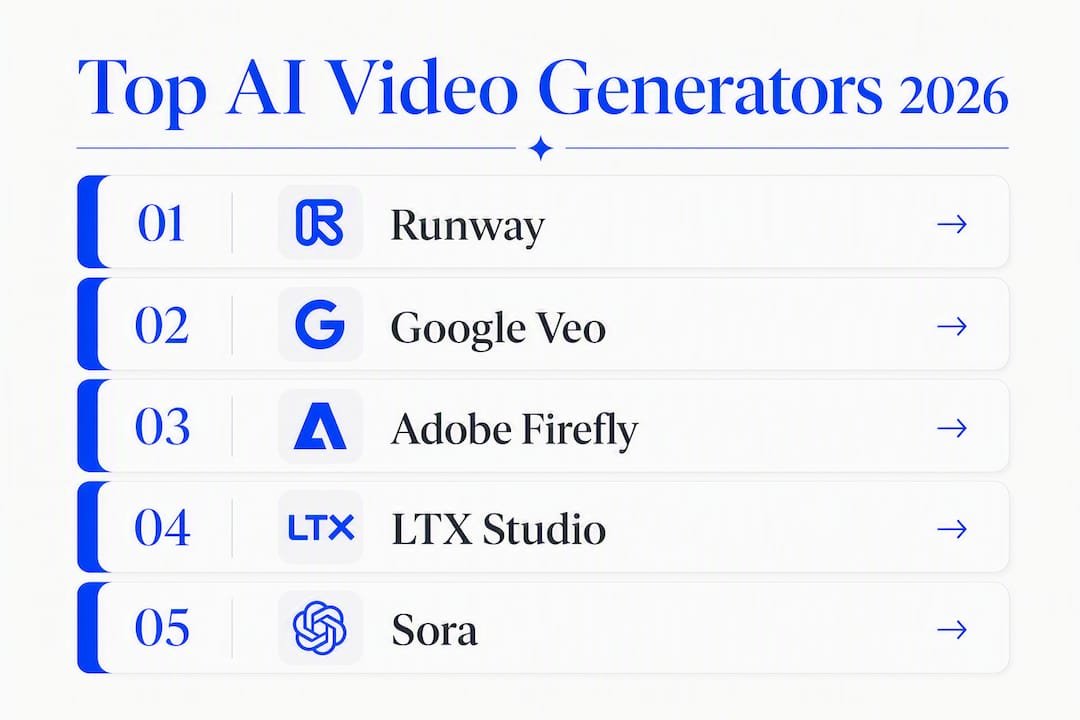
For most creators who want studio-grade output plus a full production workflow, Runway is the strongest all-around pick. It lets you generate from a prompt or image, refine in a timeline editor, and finish with tools like object removal and relighting, all inside one workspace. If you need synchronized audio built into the model, Google Veo (Veo 3.1) is the one to try. For commercial-safe outputs with Creative Cloud integration, Adobe Firefly is the go-to for marketing teams. And if you’re repurposing long-form content into social clips at speed, invideo AI or OpusClip will save you hours every week.
Here’s the quick shortlist:
- Runway | Best overall | End-to-end generation and editing in one workspace
- Google Veo | Best for cinematic + audio | Synchronized audio and photoreal motion from a single model
- Adobe Firefly | Best for commercial-safe | Explicit licensing assurances plus partner-model access (Veo 3.1, Kling 3.0, Runway Gen-4.5)
- Synthesia | Best for teams and training | AI presenters, localization, and scale
- invideo AI | Best for social marketing | Script-to-video automation with stock integration
- Descript | Best for podcast/transcript editing | Edit video by editing the transcript
Table of Contents
- Which AI video generators are worth your time in 2026?
- How do these tools compare side by side?
- How we evaluated AI video generators
- How do you pick the right AI video tool for your project?
- What does a practical AI video production workflow look like?
- What do AI video tools actually cost, and how long does production take?
- What are the best next steps after reading this?
- Key Takeaways
- What I actually look for when recommending an AI video tool
- Ready to build your AI video workflow?
- Useful sources and further reading
Which AI video generators are worth your time in 2026?
The field has moved fast. What separates the tools worth trialing from the ones that will frustrate you after 20 minutes comes down to three things: whether the output quality holds up under real prompts, whether the platform handles the full workflow (generation through export), and whether you actually own what you make for commercial use.
Zapier’s 2026 roundup of AI video generators organizes tools by use case rather than raw model power, and that framing is right. Reliability, creative control, and commercial safety now matter as much as generation fidelity. Below are the tools that earn their place, organized by what they genuinely do best.
Runway
Runway is the closest thing to a full production studio in a browser. You start from a text prompt, an image, or an existing clip, then refine the output using editing apps for object removal, relighting, and motion control. The model-recommendation feature is genuinely useful: it suggests which generation model fits the job rather than forcing you to guess. For creators who want to generate and finish a video without switching tools, this is the workflow that makes sense.

Key features: Multi-input generation (text, image, clip), in-context editing apps, model selection per shot, upscaling, timeline editor.
Platforms: Web, with desktop integrations.
Pricing: Free tier available; paid plans scale by credits.
Commercial use: Check current terms; professional plans typically include commercial rights.
Google Veo (Veo 3.1)
Veo 3.1 is Google DeepMind’s leading generation model, and its standout capability is synchronized audio. Dialogue, ambient sound, and sound effects generate directly from the prompt alongside the video, which removes an entire post-production step. Motion fidelity is high, and photoreal scenes hold up well under complex prompts. Access is available through Google’s own products and through Adobe Firefly’s multi-model workspace.
Key features: Native synchronized audio, photoreal motion, extended video support.
Platforms: Web (via Google products and partner integrations).
Commercial use: Confirm per access channel; Adobe Firefly’s Veo integration carries Firefly’s commercial-use framing.

Adobe Firefly
Adobe Firefly is the right call for any marketing team that needs to publish without a licensing headache. Videos generated with the Adobe Firefly model are explicitly advertised as safe for commercial use. Beyond that, the workspace gives you access to partner models including Veo 3.1, Kling 3.0, and Runway Gen-4.5, so you can pick the right model for each shot without leaving Creative Cloud. The integration with Premiere Pro and Photoshop is a real time-saver for teams already in that ecosystem.
Key features: Commercial-use assurances, multi-model access, Creative Cloud integration, partner models.
Platforms: Web, integrated with Premiere Pro and Photoshop.
Pricing: Included in Creative Cloud plans; standalone Firefly plans available.
Commercial use: Explicitly commercial-safe for Firefly-model outputs.
Pro Tip: When using Adobe Firefly for client work, generate with the native Firefly model first to lock in commercial-use safety, then layer in partner models (Veo, Kling) for shots where motion fidelity matters more than licensing certainty.
LTX Studio
LTX Studio targets filmmakers who want fine-grained control over motion and scene composition. The platform emphasizes cinematic output and lets you adjust camera movement, pacing, and style at a level most consumer tools don’t offer. If you’re building a short film or a high-production-value brand video, the creative controls here are worth the steeper learning curve.
Key features: Fine motion control, cinematic output, scene-level style adjustments.
Best for: Filmmakers and creators who need precision over aesthetics.
Sora
Sora is OpenAI’s foundation video model, built for realistic scene generation from text prompts. Character continuity across shots is one of its stronger traits, and reference-based generation helps maintain visual consistency in multi-scene projects. It’s available through ChatGPT Plus and Pro plans.
Key features: Photoreal scene generation, character continuity, reference-based prompting.
Best for: Creators who need consistent characters across multiple shots.
Kling (including Kling 2.6)
Kling’s headline feature is its Omni dialogue and lip-sync capability. If your project involves a character speaking on screen, Kling 3.0 and Kling 2.6 produce lip movement that actually matches the audio, which is harder to achieve than it sounds. Stylized generation options give it range beyond pure realism.
Key features: Lip-sync, Omni dialogue, stylized generation.
Best for: Projects where on-screen dialogue is central.
Seedance
Seedance focuses on camera motion fidelity and scene-level style controls. Cinematic short-form projects benefit most from its rendering approach, particularly when you want a specific visual grammar (shallow depth of field, specific color treatment) baked into the generation rather than added in post.
Wan
Wan is a foundation model that shows up inside multi-model workspaces rather than as a standalone consumer product. Its value is style versatility: it handles genre shifts (documentary, stylized, abstract) that more specialized models struggle with.
invideo AI
invideo AI is purpose-built for volume. You feed it a script or a topic, and it assembles a video using stock assets, voiceover, and on-screen text. For affiliate marketers and social media teams producing multiple clips a week, the automation here is the point. It’s not the tool for cinematic work, but for fast, publish-ready social content, it’s hard to beat on speed.
Key features: Script-to-video automation, integrated stock library, voiceover generation.
Platforms: Web.
Best for: Marketing teams and affiliate creators who need consistent output volume.
Descript
Descript flips the editing model: you edit the transcript, and the video edits itself. Delete a sentence from the transcript, and that clip disappears from the timeline. It also includes voice cloning and filler-word removal. For podcasters and interview-based creators, this is the most intuitive editing experience available.
Key features: Transcript-driven editing, voice cloning, filler-word removal, screen recording.
Platforms: Web and desktop (Mac, Windows).
Best for: Podcasters, interview creators, anyone who edits by script.
Wondershare Filmora
Filmora sits in the consumer-friendly tier of AI-assisted editors. It won’t generate video from scratch, but its AI enhancement features (background removal, noise reduction, color matching) make it a solid finishing tool for creators who shoot their own footage and want a polished result without a steep learning curve.
VEED
VEED is a browser-based editor built for social media speed. Auto-subtitles, one-click aspect-ratio resizing, and a clean interface make it the fastest path from raw footage to a platform-ready clip. It’s not a generation tool, but for repurposing and finishing, it’s genuinely quick.
Capsule
Capsule is designed for brand teams that need to enforce consistency across many videos. Template locking, approval workflows, and brand kit integration mean that every video a team produces looks like it came from the same playbook. If you manage a content team and spend too much time correcting off-brand edits, Capsule addresses that directly.
Eddie AI
Eddie AI generates rough cuts automatically from raw footage. You upload the footage, and it produces a first draft you can iterate from. For creators who dread the blank-timeline problem, this is a useful starting point.
OpusClip
OpusClip is the specialist for long-to-short repurposing. It analyzes a long-form video, identifies the most shareable moments, and exports them as vertical clips with captions. For anyone running a podcast or YouTube channel who also wants a TikTok or Reels presence, OpusClip handles the extraction automatically.
Vyond
Vyond is an animation-first platform for explainer and training videos. The template-driven animated presenters and scene library make it the practical choice for L&D teams and anyone producing corporate training content at scale.
Synthesia
Synthesia generates presenter-led videos using a large library of AI avatars. Multi-language support and localization features make it the go-to for internal communications and training content that needs to reach global teams. You write the script, pick an avatar, and the platform handles the rest.
LiveAvatar by HeyGen
LiveAvatar by HeyGen extends the avatar concept into interactive and localized workflows. If you need a presenter video in multiple languages or an avatar that can respond dynamically, HeyGen’s toolset handles both. It’s particularly strong for localized marketing content.
revid.ai
revid.ai is template-driven and fast. You bring the content (a blog post, a script, a set of talking points), and the platform packages it into a platform-ready video. The value is speed and consistency rather than creative flexibility.
Pictory
Pictory automates the long-form-to-short-form pipeline. Feed it a blog post or a long video, and it extracts the key moments, adds captions, and produces a polished short clip. The draft-to-publish workflow is straightforward enough that non-editors can use it confidently.
How do these tools compare side by side?
| Tool | Best For | Free Tier | Commercial Use | Platforms | Creative Control | Editing Features | Team Features |
|---|---|---|---|---|---|---|---|
| Runway | Overall / end-to-end workflow | Yes | Check pro plan terms | Web | High | Object removal, relighting, upscale | Limited |
| Google Veo (Veo 3.1) | Cinematic + synchronized audio | Via partner tools | Confirm per channel | Web | High | Native audio generation | Via integrations |
| Adobe Firefly | Commercial-safe marketing | Yes (CC plan) | Explicitly commercial-safe | Web, CC apps | High (multi-model) | Premiere/Photoshop integration | Yes (CC teams) |
| LTX Studio | Filmmaking / fine motion control | Limited | Check terms | Web | Very high | Scene-level controls | Limited |
| Sora | Photoreal scenes / continuity | Via ChatGPT plans | Check OpenAI terms | Web | Medium | Reference-based prompting | No |
| Kling / Kling 2.6 | Lip-sync / dialogue | Yes (limited) | Check terms | Web | Medium-high | Omni dialogue, lip-sync | No |
| Seedance | Cinematic short-form | Limited | Check terms | Web | High | Camera motion controls | No |
| Wan | Stylized / specialty effects | Via workspaces | Check terms | Via multi-model tools | Medium | Style modulation | No |
| invideo AI | Social marketing / volume | Yes | Yes (paid plans) | Web | Low-medium | Script-to-video, stock assets | Yes |
| Descript | Transcript-based editing | Yes | Yes | Web, Desktop | Low (editing) | Transcript edit, voice clone | Yes |
| Wondershare Filmora | AI polish on existing footage | Yes | Yes (paid) | Desktop, Mobile | Medium | AI enhancement, noise reduction | Limited |
| VEED | Fast social repurposing | Yes | Yes (paid) | Web | Low | Auto-subtitles, resize | Limited |
| Capsule | Brand team consistency | No | Yes | Web | Medium | Template enforcement, approvals | Yes |
| Eddie AI | Quick rough cuts | Limited | Check terms | Web | Low | Auto rough-cut | No |
| OpusClip | Long-to-short repurposing | Yes | Yes (paid) | Web | Low | Highlight extraction, captions | Limited |
| Vyond | Explainer / training animation | No | Yes | Web | Medium | Animated presenters, scenes | Yes |
| Synthesia | Presenter / training at scale | Limited | Yes | Web | Low-medium | Avatar selection, localization | Yes |
| LiveAvatar by HeyGen | Localized avatar videos | Limited | Yes | Web | Medium | Interactive avatars, multi-language | Yes |
| revid.ai | Fast template-based production | Yes | Yes | Web | Low | AI templates, content repackaging | Limited |
| Pictory | Long-form repurposing | Yes | Yes | Web | Low | Auto-extract, captions | Limited |
| Canva | Quick social clips / design-first | Yes | Yes (paid) | Web, Mobile | Low | Template-driven, design assets | Yes |
Commercial-use note: “Explicitly commercial-safe” means the vendor’s published terms cover use in ads and monetized content. “Check terms” means the licensing language is ambiguous or plan-dependent. Always validate commercial rights before publishing to paid media.
How we evaluated AI video generators
Trust in a ranked list comes from knowing how the ranking was built. Here’s the framework used to assess each tool.
Evaluation criteria:
- Output quality and resolution — Does the generated video hold up at full size? Does it handle complex motion without distortion?
- Prompt adherence — Does the tool produce what you asked for, or does it drift into generic outputs?
- Creative control — Can you adjust camera motion, style, pacing, and character consistency?
- Audio capabilities — Does the tool generate native audio, or do you need a separate pass?
- Commercial-use licensing — Are the terms explicit, or do you need to dig through legal pages?
- Editing features — Can you finish the video inside the same tool (subtitles, lip-sync, timeline)?
- Team and collaboration features — Does the platform support approvals, templates, and shared assets?
- Speed and consistency — How long does generation take, and does quality hold across multiple runs?
- Ease of use — Can a non-technical creator produce something publishable in under 30 minutes?
- Roadmap and updates — Is the platform actively shipping new features, or has development stalled?
Sample prompts used in evaluation:
- Social prompt: “A 15-second vertical video of a confident woman walking through a sunlit city street, upbeat music, text overlay reading ‘Your brand here.’”
- Cinematic prompt: “A wide establishing shot of a fog-covered mountain valley at dawn, slow camera push, cinematic color grade, ambient wind sound.”
For each prompt, the evaluation measured resolution output, how closely the result matched the description, whether native audio generated alongside the video, and whether a second run produced a consistent result. Testing was conducted in-browser for all web-based tools. Generation length was capped at 10–15 seconds per run to keep iteration practical. Upscaling and secondary editing were tested as separate steps where the platform offered them.
Practitioners favor platforms that give unified access to multiple foundation models within a single workspace, because it lets you pick the right model for each shot rather than committing to one model’s strengths and weaknesses for the entire project.
How do you pick the right AI video tool for your project?
The honest answer is that no single tool wins every category. The right choice depends on what you’re making, who owns it, and how you’ll publish it.
Questions to ask before you commit to a trial:
- What’s the final output format? (Vertical 9:16 for social, 16:9 for YouTube, square for ads?)
- Do you need commercial rights for paid advertising or client work?
- Will multiple people need to review or edit the video?
- Does the project require a consistent character or presenter across multiple clips?
- How much time do you have? (Script-to-publish in 30 minutes vs. a multi-day production?)
Red flags to watch for during trials:
- No explicit commercial license in the published terms
- Character faces that drift between shots (a sign of weak continuity)
- Audio that generates separately and doesn’t sync with mouth movement
- Generation times over 5 minutes for a 10-second clip (a workflow killer at scale)
- No export control over resolution or format
Quick use-case matches:
- Social clip in under an hour: invideo AI, VEED, or Canva
- Product video with a presenter: Synthesia or LiveAvatar by HeyGen
- Cinematic short or brand film: Runway or LTX Studio
- Training or explainer video: Vyond or Synthesia
- Repurposing a podcast or long video: OpusClip or Pictory
- Commercial-safe marketing content: Adobe Firefly
Trial management tips:
In your first 10–15 minutes, test one short social prompt and check whether the output matches the description, whether the resolution is usable, and whether you can export without watermarks on the plan you’re testing. Over a longer proof-of-concept (a full day or two), test character consistency across three or more clips, run the same prompt twice to check consistency, and attempt one full workflow from prompt to finished export.
Teams that scale video production consistently choose platforms that automate the whole process, including approvals, branding, and template enforcement, rather than platforms that only excel at the generation step.
What does a practical AI video production workflow look like?
Generation is step one, not the whole job. Here’s the workflow that produces finished, publish-ready video rather than a raw model output.
-
Upscale and reduce noise — Most generation models produce outputs that benefit from an upscaling pass. Runway and similar professional platforms recommend upscaling and secondary AI editing after the initial render to meet production standards.
-
Add audio and lip-sync. If your tool doesn’t generate native audio (like Veo 3.1 does), this is a separate step. Tools like ElevenLabs handle voice generation, and Kling handles lip-sync for on-screen dialogue. Studio-style platforms that combine generation, audio, and a timeline editor reduce the number of handoffs significantly.
Pro Tip: When producing a series of clips that need to look like they belong together, use the platform’s brand kit or template feature to lock typography, color grading, and logo placement before you generate. Fixing brand consistency in post takes longer than building it in from the start.
For teams, using templates and brand kits inside the platform enforces visual consistency across every clip without requiring a senior editor to review each one.
What do AI video tools actually cost, and how long does production take?
Pricing across this category follows three main shapes, and knowing which one you’re buying into changes how you budget.
Pricing patterns:
- Credit-based: You buy or earn credits, and each generation consumes a set amount. Runway, Kling, and Sora use variations of this model. Credits run out faster than you expect when you’re iterating, so factor in 3–5 generations per finished clip when estimating costs.
- Subscription with usage limits: A monthly fee covers a set number of minutes or generations. invideo AI, Synthesia, and Vyond use this approach. Predictable cost, but you’ll hit limits if you scale up suddenly.
- Seat-based for teams: Capsule and enterprise tiers of Synthesia charge per seat. Predictable for headcount-stable teams; expensive if your team size fluctuates.
Typical timelines:
- Short social clip (15–30 seconds): Generation takes 1–3 minutes per attempt. With 3–4 iterations plus captioning and export, budget 30–60 minutes from prompt to publish.
- Cinematic scene (30–60 seconds): Generation takes 3–8 minutes per attempt. With upscaling, audio, and editing, budget 2–4 hours for a polished result.
- Presenter-led training video (3–5 minutes): With Synthesia or Vyond, script-to-export can run 1–2 hours including avatar selection and review.
Cost-saving approaches:
- Batch your generations in a single session to avoid re-spending credits on setup.
- Use templates for recurring formats (weekly social clips, product announcements) rather than generating from scratch each time.
- Upscale a good generation rather than re-generating to chase a slightly better output. Re-generation costs credits; upscaling usually doesn’t.
Commercial-use licensing is worth treating as a line item in your budget. Confirming commercial rights before publishing to paid media is not optional for affiliate marketers and brand teams. If a vendor’s terms are ambiguous, request written confirmation before you publish to ads.
What are the best next steps after reading this?
You’ve got the shortlist. Here’s how to turn that into a decision in the next 48–72 hours.
-
Pick two tools from the shortlist that match your primary use case. Don’t trial five at once; you won’t have enough time to evaluate any of them properly.
-
Run the same prompt in both tools. Use a real project prompt, not a generic test. Something you’d actually publish. Compare the outputs side by side on resolution, prompt adherence, and how much editing the result needs.
-
Check the commercial-use terms on both. Go to the pricing or terms page, not the marketing copy. Look for explicit language about ads, monetization, and client work.
-
Test the full workflow, not just generation. Export a finished clip from each tool, including captions or audio if your project needs them. The generation quality matters less than whether you can get a publish-ready file out the other end.
-
Involve a second person if you’re evaluating for a team. Have someone else attempt the same workflow independently. If they can’t produce a usable clip without your help, the tool isn’t ready for team use.
-
Set a decision deadline. Give yourself 48 hours per tool. Longer trials tend to drift into feature exploration rather than real evaluation.
If you want structured coaching on building an AI video workflow for affiliate marketing or content creation, Will Buckley’s resources at Willbuckley cover the implementation side in practical detail.
Key Takeaways
The strongest AI video tools in 2026 are the ones that handle the full workflow from generation to export, not just the generation step.
| Point | Details |
|---|---|
| Best overall pick | Runway handles generation, editing, and finishing in one workspace, making it the strongest all-around choice. |
| Commercial-use first | Adobe Firefly is the safest choice for marketing and ads; its Firefly-model outputs are explicitly commercial-safe. |
| Audio changes everything | Google Veo 3.1 generates synchronized audio alongside video, removing a full post-production step. |
| Workflow beats raw quality | Tools that automate approvals, templates, and brand consistency scale better than single-model generators for teams. |
| Willbuckley for implementation | Willbuckley’s coaching resources help affiliate marketers and creators build repeatable AI video workflows for marketing. |
What I actually look for when recommending an AI video tool
Most comparisons of AI video generators focus on which model produces the prettiest output. That’s the wrong question for anyone building a real content operation.
The question that matters is: can you get a publish-ready video out of this tool in a reasonable amount of time, without a licensing risk attached to it? Generation fidelity is table stakes now. Runway, Veo, Kling, and Sora all produce impressive outputs. What separates a tool worth building a workflow around from one that’s just fun to demo is whether it handles the steps after generation: audio, editing, brand consistency, and export.
There’s also a trap worth naming. A lot of creators spend weeks testing generation models and never actually publish anything. The trial becomes the project. The tools that break that pattern are the ones with enough automation to get you from prompt to publish without requiring you to become a video editor. invideo AI and OpusClip exist precisely for this reason. They’re not the most impressive generators, but they’re the ones that actually ship content.
For affiliate marketers specifically, the licensing question is non-negotiable. You cannot assume commercial rights because a tool has a paid plan. You need to see the language. Adobe Firefly is the clearest on this. If you’re running paid ads or producing content for clients, start there and layer in other models for creative variety.
The best workflow is the one you’ll actually use consistently. Pick the tool that fits your production rhythm, not the one with the most impressive demo reel.
Ready to build your AI video workflow?
There are plenty of strong tools in this list, and Runway, Adobe Firefly, and invideo AI will each serve you well depending on your use case. But knowing which tool to pick is only half the equation. The other half is building a repeatable workflow that actually produces content on a schedule.

Willbuckley’s coaching resources are built for affiliate marketers and solopreneurs who want to use AI video tools as part of a real marketing system, not just a one-off experiment. You get practical workflow templates, a trial checklist you can use with any tool on this list, and guidance on how to turn a single video into a full content campaign. If you’re ready to move from testing to publishing, start with the resources at Willbuckley and build the workflow that fits your business.
Useful sources and further reading
- Runway AI Video Generator — Product page covering generation inputs, editing apps, and workflow features. Useful for verifying current model options and pricing tiers.
- Adobe Firefly AI Video Generator — Official feature page with commercial-use statements and partner-model details (Veo 3.1, Kling 3.0, Runway Gen-4.5).
- Veo 3.1 — Google DeepMind — Primary source for Veo’s synchronized audio capabilities and cinematic generation features.
- Zapier: The 16 Best AI Video Generators in 2026 — Buyer-focused roundup organized by use case; useful for cross-referencing category recommendations.
- monday.com: AI for Video Creation — 15 Best Platforms in 2026 — Team-focused analysis covering workflow automation, collaboration, and governance features.
- ElevenLabs AI Video and Audio Integrations — Reference for integrated audio generation and lip-sync workflows alongside video generation.
- PCMag: The Most Powerful AI Video Generators We’ve Tested — Hands-on testing coverage of generation quality, audio, and complex motion across leading tools.
- invideo AI on Capterra — User reviews and ratings for invideo AI; useful for real-world feedback on ease of use and output quality.
- Willbuckley Blog — Practical guides on applying AI video and marketing workflows for affiliate marketers and content creators.