

If you promote other companies’ products, Google Tag Manager (GTM) is the free tool that lets you see which affiliate links your readers actually click, without editing your site’s code every time you want to measure something new. You set up one trigger, send the click to Google Analytics 4 (GA4) as an event, and test it before you trust it. This guide walks through that whole path, plus the mistakes that quietly wreck the data.
Have you ever looked at your affiliate network dashboard, seen a handful of sales, and had no idea which post or button sent them? That gap is exactly what click tracking closes. It won’t make you money by itself, but it tells you where to spend your next hour.
TL;DR
- GTM deploys your tracking tags. GA4 does the reporting. Keep those two jobs separate in your head.
- The core setup is a link click trigger, a GA4 event tag, and a few click variables, tested in Preview mode before you publish.
- Mark your affiliate click event as a key event in GA4 so it shows up in conversion reporting.
- Respect consent rules, and expect GA4 click counts to differ from your affiliate network’s numbers.
- On Shopify, GTM runs as a custom web pixel, which has limits. Check for double counting first.
Table of Contents
- What GTM does for an affiliate site (and what it doesn’t)
- Why GA4 changes how you think about clicks
- Before you build: a quick checklist in your head
- Step 1: Turn on the click variables
- Step 2: Create the link click trigger
- Step 3: Build the GA4 event tag
- Step 4: Test before you publish
- Step 5: Make the event count in GA4
- Consent: don’t skip this part
- Why GA4 and your affiliate network won’t match
- Using GTM with Shopify
- Going further: server-side tagging
- Our perspective: measure less, act more
- Want a hand turning data into decisions?
- Common mistakes to avoid
- FAQ
- Sources
What GTM does for an affiliate site (and what it doesn’t)
Google describes Google Tag Manager as a tag management system context for deploying tracking codes without changing your site’s source each time. For you, that means one container snippet goes on your site once, and from then on you add or change tracking inside the GTM interface.
Here’s the part beginners trip over. GTM is the middleman. It decides when and where your tracking fires. It does not analyze anything. The reporting, the charts and the “which post earns clicks” answers live in GA4. If you want a plain-language look at that split, this piece on why analytics drives better marketing returns is a useful companion read.
One more clarification, because it shows up in searches: there is no official “Google affiliate” program built on GTM. Google Tag Manager is a free, neutral tool for managing marketing tags. You use it to measure your participation in other companies’ affiliate programs, nothing more.
Why GA4 changes how you think about clicks
GA4 is built on events. Every interaction, including a click, is recorded as its own event rather than being folded into a session the way the older Universal Analytics did it. That’s more flexible, and it’s also the biggest adjustment for affiliates. You can’t lean on a single session number anymore. You need to define the event that matters, which here is “someone clicked an affiliate link,” and name it clearly.
Google also warns that key event counts differ between the old and new platforms because the two work differently. So don’t be alarmed if your history doesn’t line up with last year’s reports. Start fresh, and compare new months to new months.
Before you build: a quick checklist in your head
You need three things in place. First, a GTM container installed on your site. Second, a GA4 property that already receives page views, ideally through a Google tag managed inside GTM. Third, a way to recognize your affiliate links. That last one is the one people skip.
Look at your links. Do they all point to a few domains, such as your network’s tracking domain? Do they pass through a redirect on your own site, like a /go/ or /recommends/ path? Do they carry a parameter such as aff or ref? Whatever pattern is consistent, write it down. Your trigger will rely on it. If your links are messy and inconsistent, fix that first. Our guide on building cookieless affiliate link tracking covers cleaning up the link layer before you measure it.
Step 1: Turn on the click variables
Inside GTM, open Variables and enable the built-in click variables. The ones you’ll use most are Click URL, Click Text and Click Classes. They let GTM tell you which link was clicked, what it said, and how it was styled. Analytics Mania’s walkthrough follows the same order: configure the click variables, create the trigger, create the tag, then test.
This step takes about thirty seconds, and without it your tags can’t pass useful detail along. Skipping it is why so many people end up with a report that says “affiliate click” five hundred times and nothing else.
Step 2: Create the link click trigger
Now create a new trigger and choose the Click type, then Just Links. Set it to fire on some links instead of all of them. Add a condition that matches your pattern, for example Click URL contains your network’s domain, or contains /go/ if you use a redirect path.
If you promote several programs, you have two options. You can build one trigger per program, which keeps reports tidy. Or you can build one trigger with a regular expression that matches several domains and let a variable carry the program name. For most solo affiliates, one trigger per big program is easier to read six months later.
A small tip from experience: use the same naming style everywhere. Something like “Click, affiliate, program name” sounds boring, but you’ll be grateful when your container has forty items in it.
Step 3: Build the GA4 event tag
Create a new tag using the Google Analytics: GA4 Event type. Point it at your Google tag, then name the event. Pick something short and lowercase, such as affiliate_click. Then add event parameters that make the data useful later:
A link_url parameter fed by Click URL, a link_text parameter fed by Click Text, and, if you like, a program parameter you set manually. Attach the trigger you just built and save.
If you manage several Google tags that share settings, GTM lets you reuse configuration settings across tags, which saves you from repeating yourself.
Would you rather skip GTM entirely? You can. Analytics Mania shows a no-code method using only GA4’s outbound click option. It works, but GTM gives you more control over which links count and what detail you capture, which matters once you promote more than one or two programs.
Step 4: Test before you publish
Click Preview in GTM and open your site in the debug window. Click one of your affiliate links and look at the Tags Fired list. Your event tag should appear under the click event. Then open GA4’s DebugView and confirm the event arrives with the parameters you expect.
Test the awkward cases too. What happens when someone right-clicks and opens in a new tab? What about a link inside a button, an image link, or a link in a mobile menu? A trigger that works on your text links and misses your big green button is a common problem, and one you only discover by clicking everything yourself.
Only after that, hit Submit and publish a named version. Add a short description like “Added affiliate click tracking.” Future you will thank you.
Step 5: Make the event count in GA4
Sending the event isn’t the end. In GA4, your new event shows up under recent events after a short wait. Mark it as a key event by clicking the star next to it. Analytics Mania notes that this applies only to new data, so past clicks won’t be converted retroactively. Do it the day you launch, not three months in.
Once it’s a key event, build a simple exploration: page on one side, affiliate click count on the other. That one table answers the question most affiliates actually have, which is “which of my pages sends people toward offers, and which pages get traffic but no clicks?” If you want help turning that into decisions, our overview of what AI marketing analytics means for your campaigns is a natural next read.
Consent: don’t skip this part
Tracking needs to respect privacy rules. Google’s own guidance says you should configure tags to respect user consent, and its Consent Mode exists to help you balance measurement with privacy. If you have readers in the EU or UK, or anywhere similar rules apply, your event tag should only fire in line with what visitors have agreed to. A cookie banner that’s connected to GTM is the usual route.
This is a legal area, and the rules differ by country. If you aren’t sure what applies to your audience, ask a privacy professional or a lawyer familiar with your readers’ regions before you publish, rather than guessing.
Why GA4 and your affiliate network won’t match
Expect a gap. GA4 counts clicks on your site. Your affiliate network counts visits that reach its own tracking system and the conversions that follow. Ad blockers, slow redirects, people who click then close the tab, and consent choices all create differences. A GA4 number that’s a bit higher than the network’s click count is normal.
What matters is the trend and the comparison between pages, not matching the totals to the digit. If you want to go deeper on which touchpoint deserves credit for a sale, read our piece on affiliate attribution models. And since cookie lifetimes affect what the network can see, our explainer on cookie duration for affiliate marketers is worth a few minutes.
Using GTM with Shopify
If your store or site runs on Shopify, the setup is different. Shopify’s documentation says you add GTM as a custom web pixel, pasting the container code into the pixel configuration. Shopify also notes that because of sandboxing, this approach has limits compared with putting code straight into a theme, and it points out that custom pixels are unsupported, so you may need a Shopify Partner if you get stuck.
The bigger risk is double counting. Shopify often has built-in Google Analytics integrations, and adding the same tracking again through GTM can inflate your numbers. Check what’s already running before you add anything. For a deeper look at what the sandbox does to your data, see this explainer on server-side tracking through Shopify web pixels.
Going further: server-side tagging
Once the basics work, you might hit a ceiling. Browser-based tags get blocked by ad blockers and privacy-focused browsers. Server-side GTM lets you set first-party cookies that are harder to block, which can make conversion data more accurate. The tradeoff is a server container and extra complexity. For most affiliates starting out, I’d skip it. Get the client-side version working and trusted first.
A related point if your links are dynamic. Some affiliate platforms need values like an offer ID or click ID captured at the moment of the click, and Affonso’s GTM guide explains that this calls for programmatically created script tags rather than static HTML. If you use a link-management plugin, check its own documentation first. For example, ThirstyAffiliates documents how its Pro click tracking sends data to GA4 through GTM, which can save you from building the trigger by hand.
Our perspective: measure less, act more
We see the same pattern with a lot of affiliates. They spend a weekend building an elaborate tracking setup with twenty events, then never look at the report. The setup felt productive. The decisions never followed.
Our view is simple. Start with one event, affiliate_click, and one question: which five pages send the most people to offers, and which five high-traffic pages send almost nobody? Fix the link placement on the second group before you build anything else. Then, and only then, add detail.
This is also where AI earns its place. Once you have clean click data, an AI assistant can help you spot patterns across pages, draft alternatives for weak calls to action, and flag links that deserve a better position. It can’t invent data you never collected, which is why the tracking comes first. Our AI link placement audit shows how to run that review on a ten-page pilot, and our AI affiliate workflows cover what to automate after that.
Be patient with yourself, too. Your first container will feel clumsy. That’s normal. Every person who now builds these in ten minutes once stared at a blank trigger screen wondering what “Just Links” meant.
— Will
Want a hand turning data into decisions?
If you’d like practical, AI-assisted ways to act on your affiliate numbers, start with our guide to AI workflow automation for affiliate marketers, or explore everything else we share at willbuckley.com, including tips, videos and newsletters for affiliates.
Common mistakes to avoid
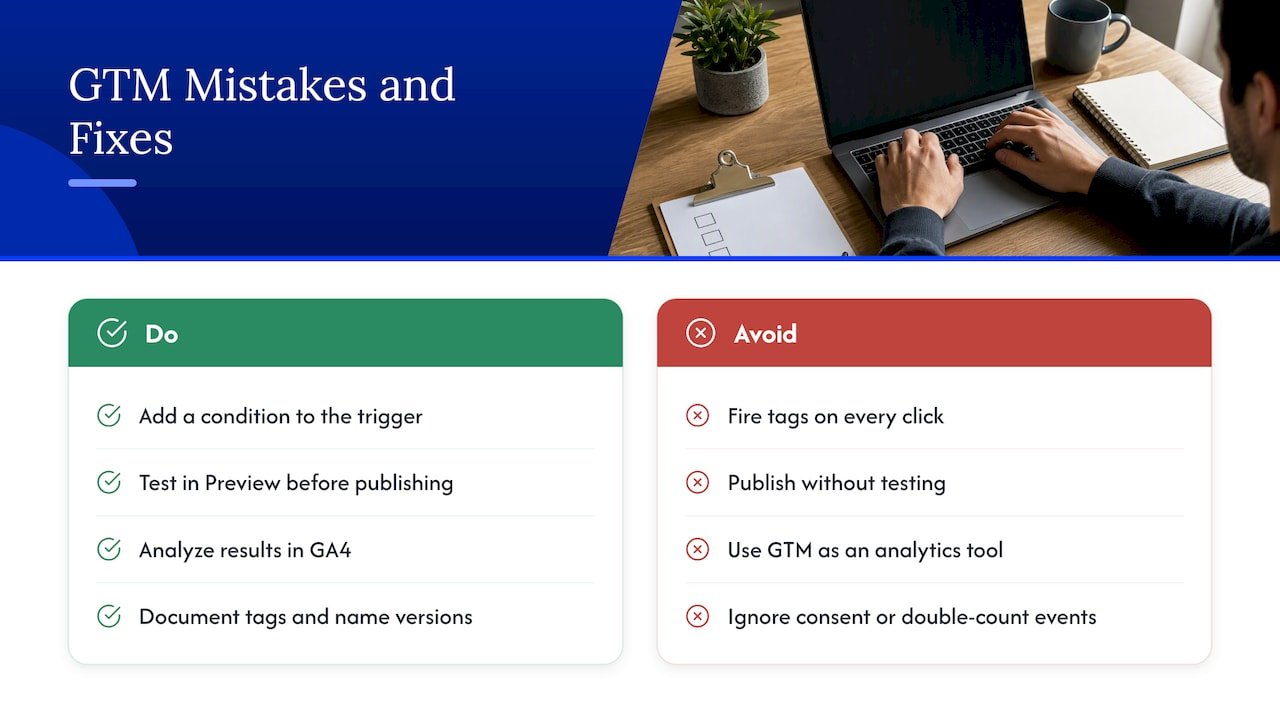
The first is firing the tag on all clicks. A trigger set to every link floods GA4 with internal navigation clicks and buries the affiliate ones. Always add a condition.
The second is publishing without testing. Preview mode exists because small typos in a URL condition are easy to make and invisible until the report comes up empty.
The third is treating GTM as an analytics tool. It deploys tags. Keep your reading and decision-making inside GA4.
The fourth is forgetting to document. Add notes to tags and name versions. Six months from now you won’t remember why a trigger excludes one domain.
The fifth is ignoring consent, which we covered above, and the sixth is double counting, most often on Shopify or when a plugin already sends the same event. If your totals look suspiciously high, look for two tags doing one job.
FAQ
How do I set up Google Tag Manager for affiliate links?
Install your GTM container on your site, enable the click variables, and create a Just Links click trigger with a condition that matches your affiliate link pattern. Then build a GA4 event tag, test in Preview mode, and publish. The steps above walk through each one.
Can I track affiliate conversions with GTM?
GTM tracks clicks on your own site well. Actual sales happen on the merchant’s site, so the conversion is recorded by your affiliate network, not by your tag. Some networks offer their own tracking scripts you can deploy through GTM if you control the thank-you page, but for most publishers, GTM covers the click side only.
Is Google Tag Manager free?
Yes. Google offers it as a free tool for managing marketing tags. Costs only appear if you add extras such as a server container for server-side tagging.
Why are my GA4 clicks different from my network’s numbers?
They measure different things in different places. Ad blockers, redirects, consent choices and abandoned clicks all create gaps. Use GA4 to compare your own pages, and use the network for earnings.
Sources
- Google Analytics Help: About events
- Google Analytics Help: Differences between Universal Analytics and GA4 key event counts
- Tag Manager Help: Google Tag Manager overview
- Tag Manager Help: Consent and tags
- Tag Manager Help: Reuse configuration settings
- Analytics Mania: Track affiliate link clicks with GA4
- Analytics Mania: Track key events with GA4
- Shopify Help Center: Create a Google Tag Manager custom pixel
- Shopify Help Center: Google Tag Manager
- Stape: Server-side affiliate tracking with server GTM
- Affonso: Google Tag Manager integration
- ThirstyAffiliates: Click tracking with Google Tag Manager